Hello. In this post, we’ll take a look at pre-rendering, one of Next.js’s defining features.
1. Pre-rendering
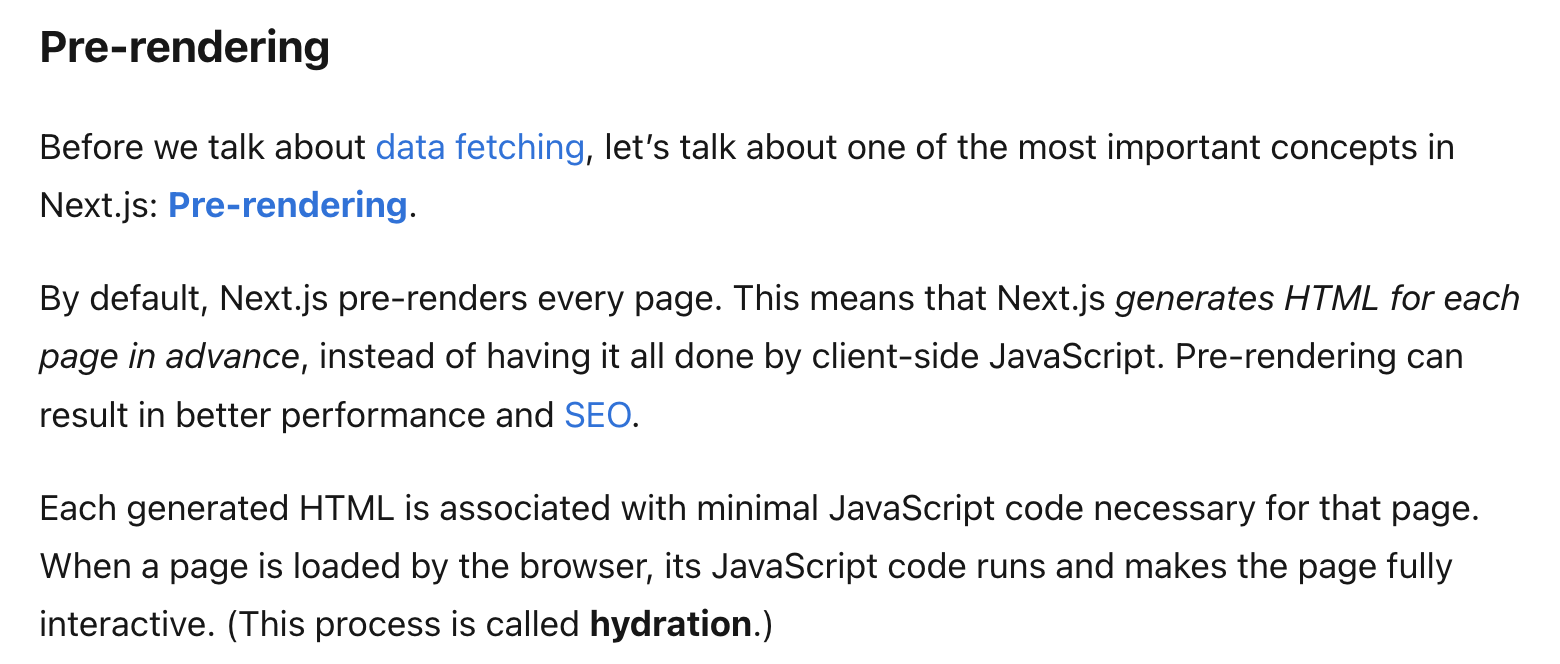
Before talking about fetching data, let’s discuss one of the most important concepts in Next.js: pre-rendering. By default, Next.js pre-renders every page. This means that instead of having client-side JavaScript do all the work, Next.js generates each page’s HTML in advance. Pre-rendering can improve performance and SEO. Each generated HTML page is associated with the minimum JavaScript code needed for that page. When the page loads in the browser, that JavaScript runs and makes the page fully interactive. (This process is called hydration.)
This is the explanation of pre-rendering from the official documentation.
CSR (Client-Side Rendering) is a method in which JavaScript files are interpreted and rendered in the browser.
SSR (Server-Side Rendering) renders a page as an HTML file on the server in advance and sends it to the client. As a result, the client receives an already-generated HTML file when communicating with the server, so rendering is faster than with CSR.
1-1. The two forms of pre-rendering
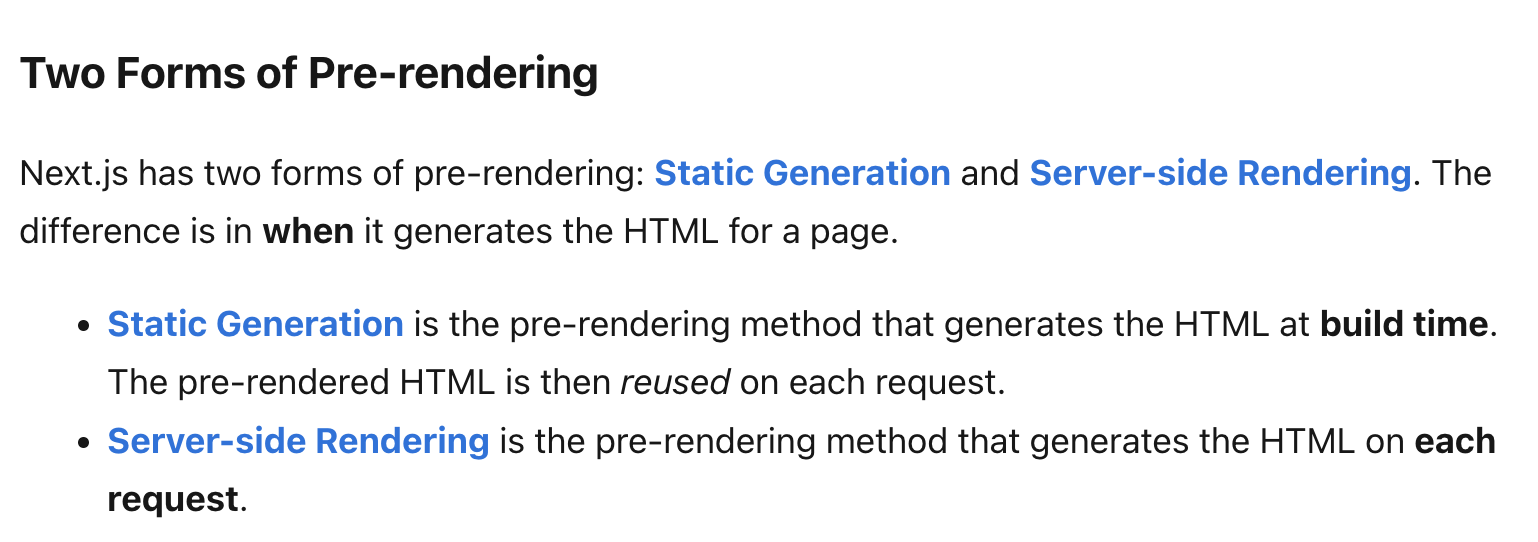
There are two forms of pre-rendering in Next.js: Static Generation and Server-Side Rendering. They differ in when the page’s HTML is generated. Static Generation is a pre-rendering method that generates HTML at build time. This pre-rendered HTML is reused for each request. Server-Side Rendering is a pre-rendering method that generates HTML for each request.
1-2. SSG and SSR
Static Generation: getStaticProps() Server-Side Rendering: getServerSideProps()
SSG stands for static site generation, while SSR stands for server-side rendering. The biggest difference between them is:
SSG: HTML is generated at build time SSR: HTML is generated for each request
Data that does not change often => use SSG Data that changes often => use SSR
Since the HTML is generated using the data available at build time, SSG is less suitable than SSR when data changes frequently.
In this post, we’ll implement SSG.
2. Let’s try it
Let’s build a simple blog that displays Markdown.
2-1. Create an app and install dependencies
Create a Next.js app with yarn create next-app next-ssg.
Then choose the options as shown below.

Enter the generated app with cd next-ssg, then install a library for parsing Markdown:
yarn add gray-matter
2-2. Create the necessary folders
Here is the current folder structure.
.
├── README.md
├── next-env.d.ts
├── next.config.mjs
├── package.json
├── pages
│   ├── _app.tsx
│   ├── _document.tsx
│   ├── api
│   │   └── hello.ts
│   └── index.tsx
├── public
│   ├── favicon.ico
│   ├── next.svg
│   └── vercel.svg
├── styles
│   ├── Home.module.css
│   └── globals.css
├── tsconfig.json
└── yarn.lock
At the root:
- Create
lib/posts.ts. - Create a
postsfolder insidepages. This is where the Markdown files will go.
Final folder structure:
.
├── README.md
├── lib
│   └── posts.ts
├── next-env.d.ts
├── next.config.mjs
├── package.json
├── pages
│   ├── _app.tsx
│   ├── _document.tsx
│   ├── api
│   │   └── hello.ts
│   ├── index.tsx
│   └── posts
├── public
│   ├── favicon.ico
│   ├── next.svg
│   └── vercel.svg
├── styles
│   ├── Home.module.css
│   └── globals.css
├── tsconfig.json
└── yarn.lock
3. Write lib/posts.ts
3-1. Imports and interface
import fs from 'fs';
import path from 'path';
import matter from 'gray-matter';

export interface PostsData {
  id: string;
  date: string;
  title: string;
  content: string;
}
Import the required modules and create an interface to define the type of the post data.
3-2. Read the files
// Folder containing the Markdown files
const postsDirectory = path.join(process.cwd(), 'pages/posts');

export function getSortedPostsData(): PostsData[] {
  const fileNames = fs.readdirSync(postsDirectory);
  const allPostsData: PostsData[] = fileNames.map((fileName) => {
    // Remove '.md' and store the filename in id
    const id = fileName.replace(/\.md$/, '');

    // Read the file identified by id as a string.
    const fullPath = path.join(postsDirectory, fileName);
    const fileContents = fs.readFileSync(fullPath, 'utf8');
Since getSortedPostsData() returns an array of type PostsData, its return type is PostsData[].
Inside the function, we get the folder name so we can read the files, then use fs.readdirSync to get their names. The file names include the .md extension, so inside the map function we use replace to remove .md and store the result in a variable named id.
Next, we use path.join to get the file location/file name and store it in a variable.
Finally, fs.readFileSync lets us read the file as a string.
3-3. Parse the files
    // Parse the Markdown using gray-matter.
    const matterResult = matter(fileContents);

    return {
      id,
      date: matterResult.data.date,
      title: matterResult.data.title,
      content: matterResult.content
    }
  })
We parse the Markdown file using gray-matter. The fileContents argument is the file content that we read as a string above.
Then we return id, date, title, and content. (This is the end of the map function.)
3-4. Return the result
// Sort by the date value in each file.
return allPostsData.sort((a, b) => {
  if (a.date < b.date) {
    return 1;
  } else {
    return -1;
  }
})
}
We received an array of type PostsData from the map function, containing id, date, title, and content.
Now we sort it by date and return it. That’s the end of this file.
3-5. Final code
import fs from 'fs';
import path from 'path';
import matter from 'gray-matter';

export interface PostsData {
  id: string;
  date: string;
  title: string;
  content: string;
}


// Folder containing the Markdown files
const postsDirectory = path.join(process.cwd(), 'pages/posts');

export function getSortedPostsData(): PostsData[] {
  const fileNames = fs.readdirSync(postsDirectory);
  const allPostsData: PostsData[] = fileNames.map((fileName) => {
    // Remove '.md' and store the filename in id
    const id = fileName.replace(/\.md$/, '');

    // Read the file identified by id as a string.
    const fullPath = path.join(postsDirectory, fileName);
    const fileContents = fs.readFileSync(fullPath, 'utf8');

    // Parse the Markdown using gray-matter.
    const matterResult = matter(fileContents);

    return {
      id,
      date: matterResult.data.date,
      title: matterResult.data.title,
      content: matterResult.content
    }
  })

  // Sort by the date value in each file.
  return allPostsData.sort((a, b) => {
    if (a.date < b.date) {
      return 1;
    } else {
      return -1;
    }
  })
}
4. Write pages/index.tsx
4-1. Imports and interface
Let’s start by importing and creating an interface for the index page as well.
import { getSortedPostsData, PostsData } from '../lib/posts';

interface HomeProps {
  allPostsData:  PostsData[];
}
Import the function and interface written in lib/posts.ts.
The HomeProps interface is an array of the imported PostsData type.
4-2. getStaticProps()
export async function getStaticProps () {
  const allPostsData = getSortedPostsData();

  return {
    props: {
      allPostsData
    }
  }
}
This is today’s topic: getStaticProps().
We assign the return value of getSortedPostsData() from lib/posts.ts to allPostsData. It contains an array of objects holding information read from the Markdown files.
Then we return it as props.
4-3. Home component
const Home: React.FC<HomeProps> = ({ allPostsData }) => {
  return (
    <>
      <section>
        <ul>
          {allPostsData.map(({ id, date, title, content}) => (
            <li key={id}>
              <h1>id: {id}</h1>
              <br/>
              <h1>title: {title}</h1>
              <br/>
              <h1>content: {content}</h1>
              <br/>
              <h1>date: {date}</h1>
              <br/>
            </li>
          ))}
        </ul>
      </section>
    </>
  )
}
The Home component is a function of type React.FC<HomeProps>.
React.FC is React’s Functional Component, and the type of this function’s props is the HomeProps interface defined above.
The props are allPostsData, received above through getStaticProps. They contain the return value of getSortedPostsData() from lib/posts.ts—that is, the file data sorted by date.
In the return statement below, we use map on allPostsData to get id, date, title, and content, then display those values in <h1> tags.
5. Test
Now let’s write a Markdown file and check that it works.
Create a .md file inside the pages/posts folder. I’ll create two.
---
title: 'first-test'
date: '2024-01-23'
---

Hello, this is the first post.
---
title: 'second-test'
date: '2024-01-22'
---

Hello, this is the second post.
I set the dates to 1-23 and 1-22 so we can compare them. Now let’s check.
Run the app with the yarn dev command.
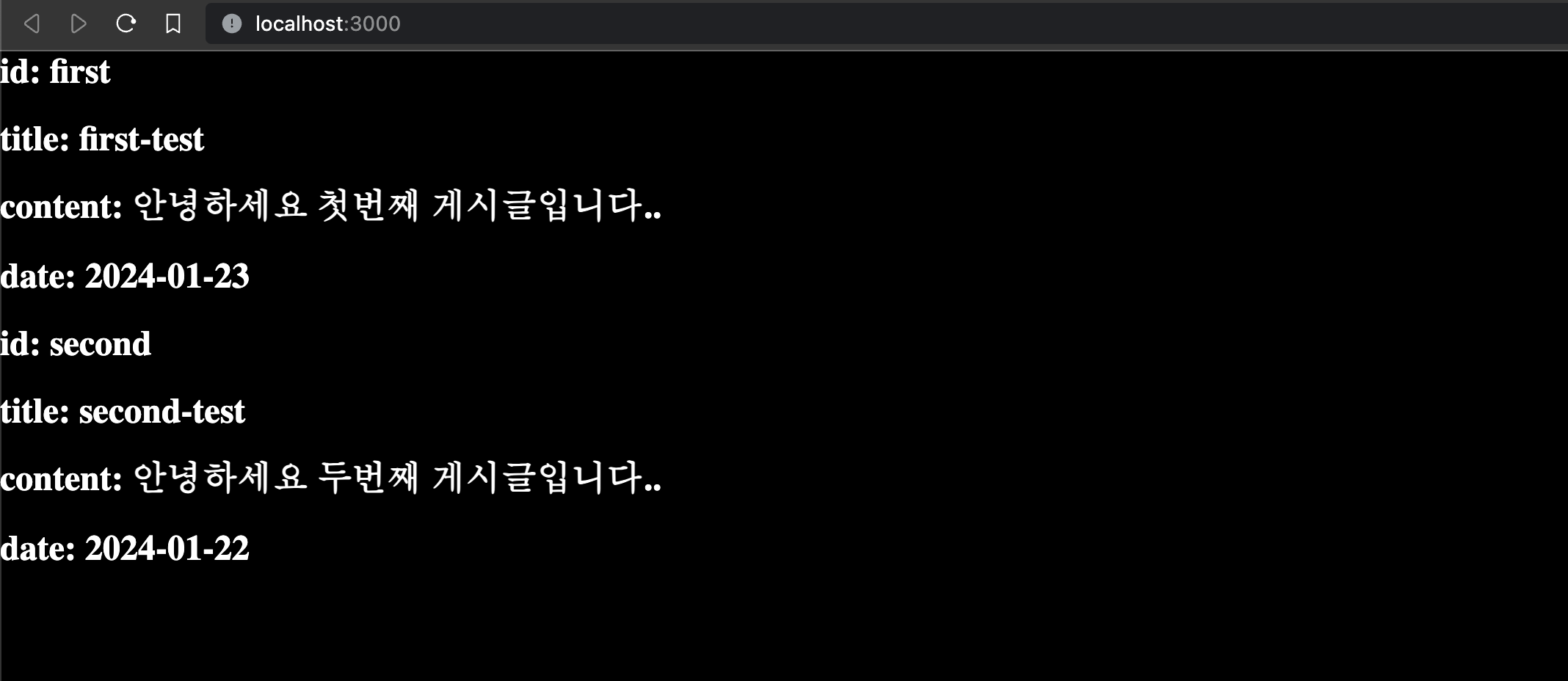
id: file name title: the title value set at the top of the file content: the content of the file date: the date value set at the top of the file
All of these appear correctly, and we can see that the posts are sorted by date.
If it doesn’t work as expected, I also uploaded it to my GitHub, so you can check there.
I had never really used SSG despite working with Next.js, but I got to try it out this time. Thanks for reading. I’ll be back with another post next time. Thank you.
>> Home