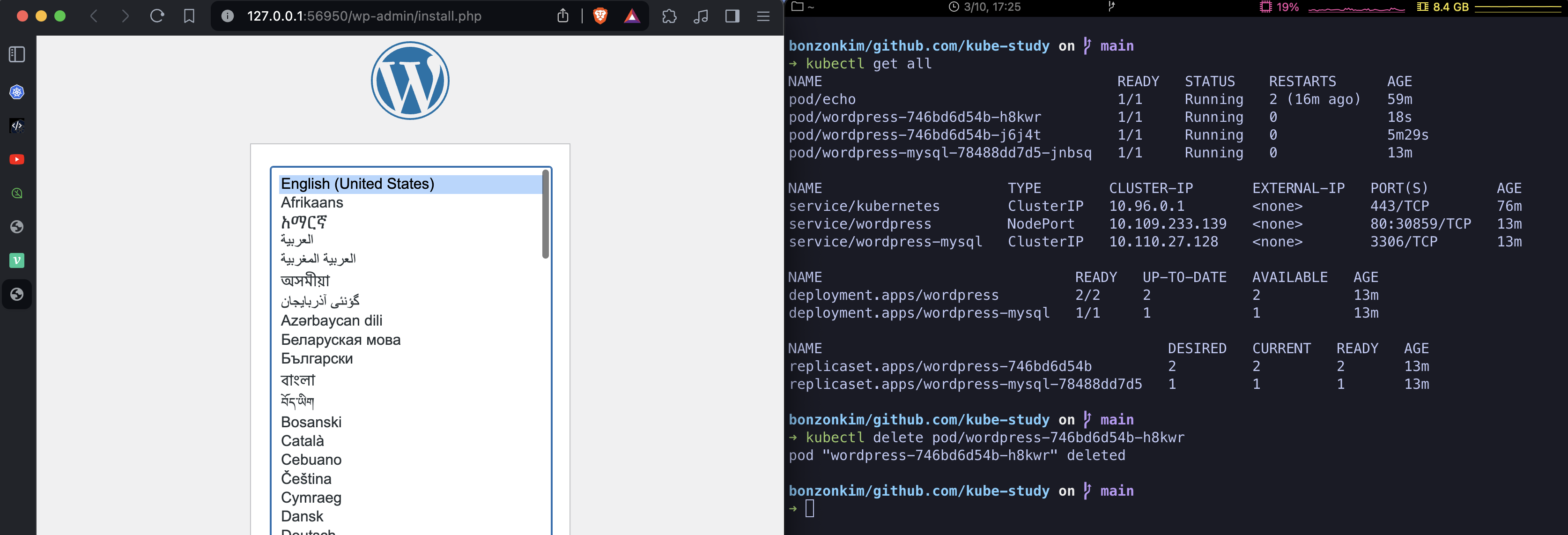
I followed the guide by subicura to do this practice.
If you’ve installed minukube and kubectl, you can start right away.
What is Minikube?
miniKube is a tool that quickly sets up a local Kubernetes cluster on macOS, Linux, and Windows. In other words, minikube makes it easy to create a Kubernetes cluster locally. It can even manage multiple clusters. To run a Kubernetes cluster, you need to install at least the scheduler, controller, api-server, etcd, kubelet, and kube-proxy. Depending on your needs, you may also need to install DNS, an ingress controller, a storage class, and so on. Installing Kubernetes is an important process, but when you’re first learning, it’s more important to learn how to use it in practice than to focus on installation. Minikube is a tool that makes this setup easy and quick. It can be used on Windows, macOS, and Linux, supports various virtual environments, and runs without problems in most environments. Source
1. Start Minikube
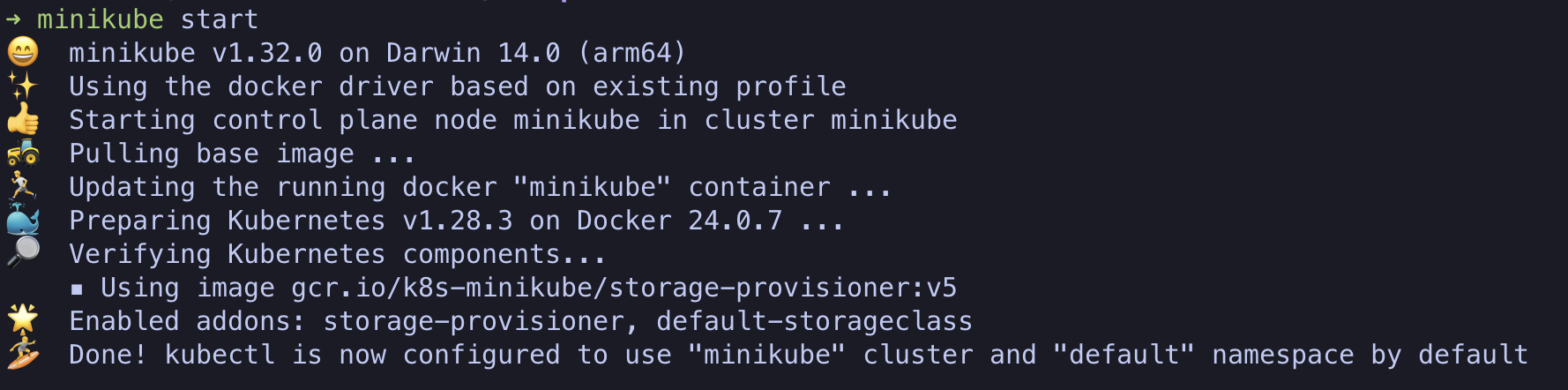
Run minikube with the minikube start command.
2. Write a YAML file
apiVersion: apps/v1
kind: Deployment
metadata:
  name: wordpress-mysql
  labels:
    app: wordpress
spec:
  selector:
    matchLabels:
      app: wordpress
      tier: mysql
  template:
    metadata:
      labels:
        app: wordpress
        tier: mysql
    spec:
      containers:
        - image: mariadb:10.7
          name: mysql
          env:
            - name: MYSQL_DATABASE
              value: wordpress
            - name: MYSQL_ROOT_PASSWORD
              value: password
          ports:
            - containerPort: 3306
              name: mysql

---
apiVersion: v1
kind: Service
metadata:
  name: wordpress-mysql
  labels:
    app: wordpress
spec:
  ports:
    - port: 3306
  selector:
    app: wordpress
    tier: mysql

---
apiVersion: apps/v1
kind: Deployment
metadata:
  name: wordpress
  labels:
    app: wordpress
spec:
  selector:
    matchLabels:
      app: wordpress
      tier: frontend
  template:
    metadata:
      labels:
        app: wordpress
        tier: frontend
    spec:
      containers:
        - image: wordpress:5.9.1-php8.1-apache
          name: wordpress
          env:
            - name: WORDPRESS_DB_HOST
              value: wordpress-mysql
            - name: WORDPRESS_DB_NAME
              value: wordpress
            - name: WORDPRESS_DB_USER
              value: root
            - name: WORDPRESS_DB_PASSWORD
              value: password
          ports:
            - containerPort: 80
              name: wordpress

---
apiVersion: v1
kind: Service
metadata:
  name: wordpress
  labels:
    app: wordpress
spec:
  type: NodePort
  ports:
    - port: 80
  selector:
    app: wordpress
    tier: frontend
I copied it over because I don’t know exactly what it means yet.
3. kubectl apply
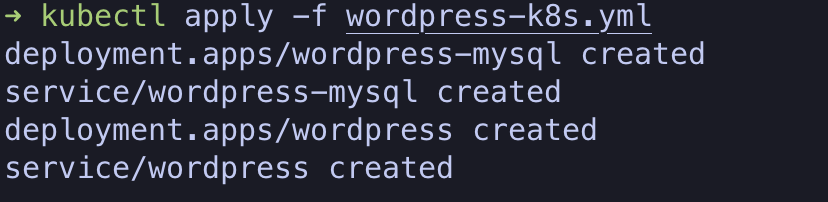
Use the apply command from kubectl to apply the desired state.
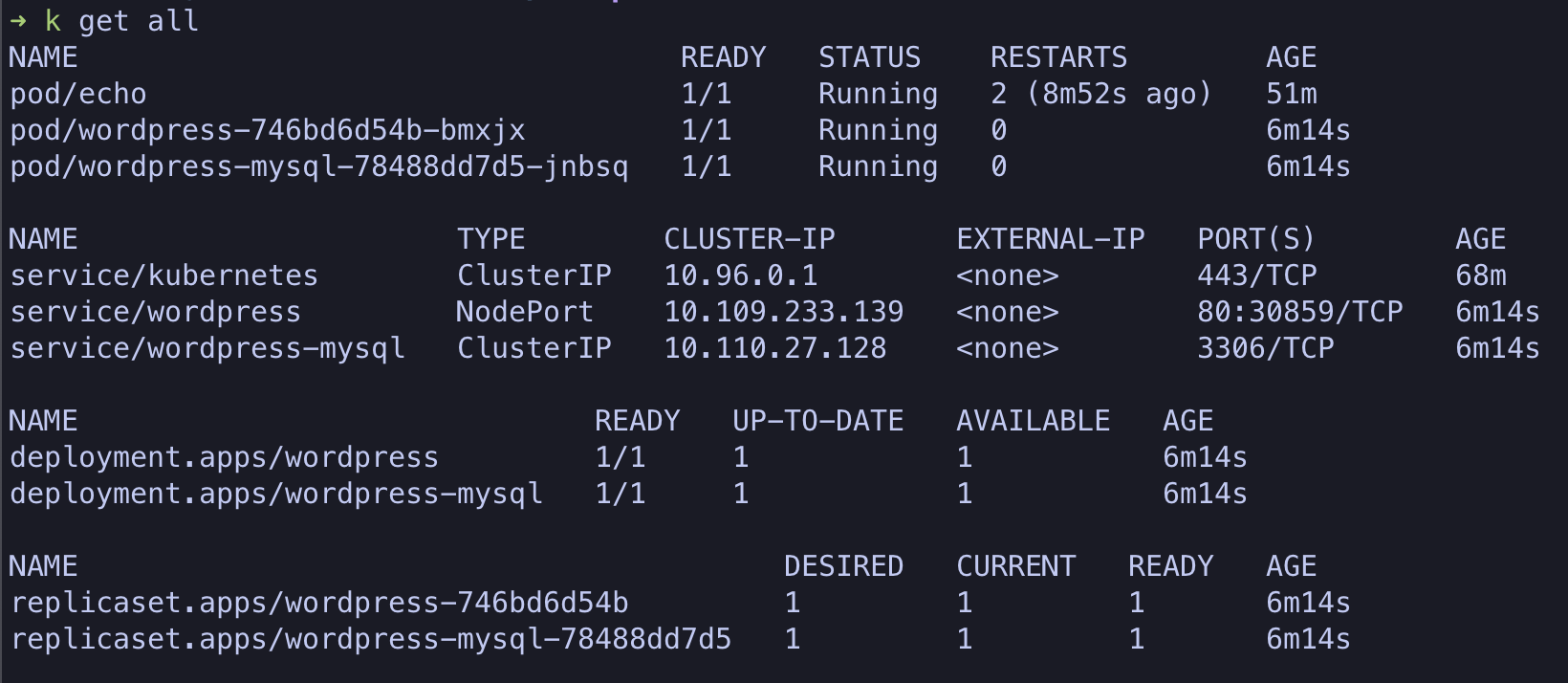
Once it’s applied, check it with the kubectl get all command.
Now let’s run the deployed wordpress.
4. Run it
Run minikube service ${service-name}. For ${service-name}, enter wordpress, since the kubectl get all command shows service/wordpress.
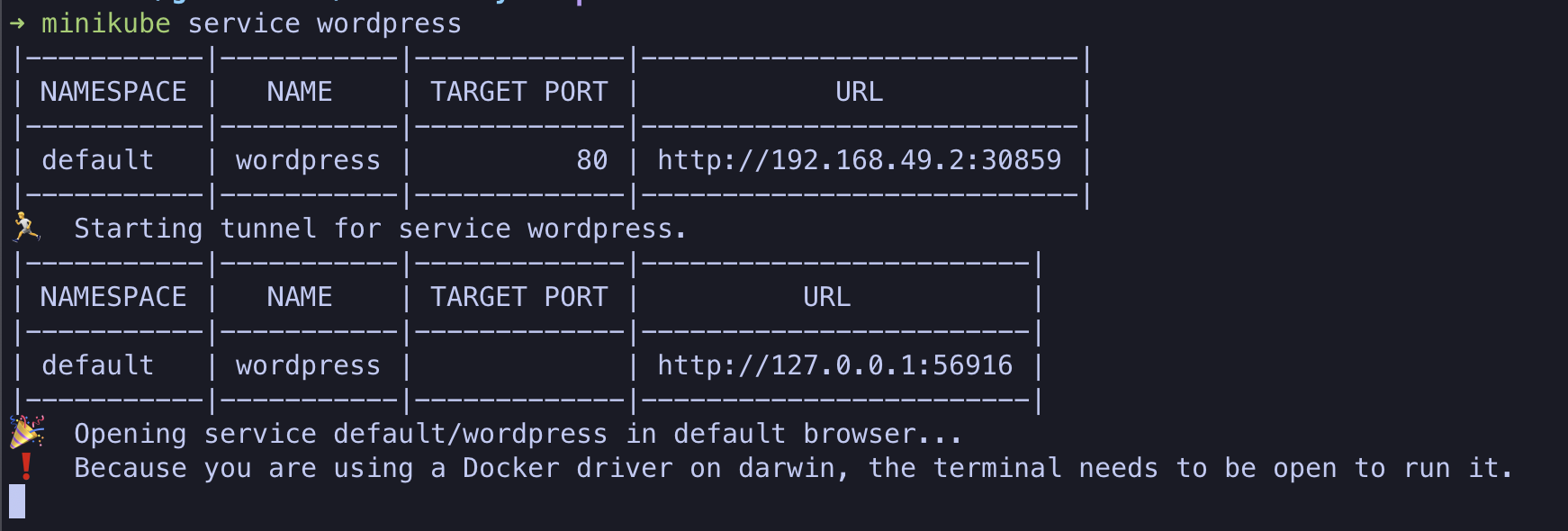 It returns this and opens a browser window.
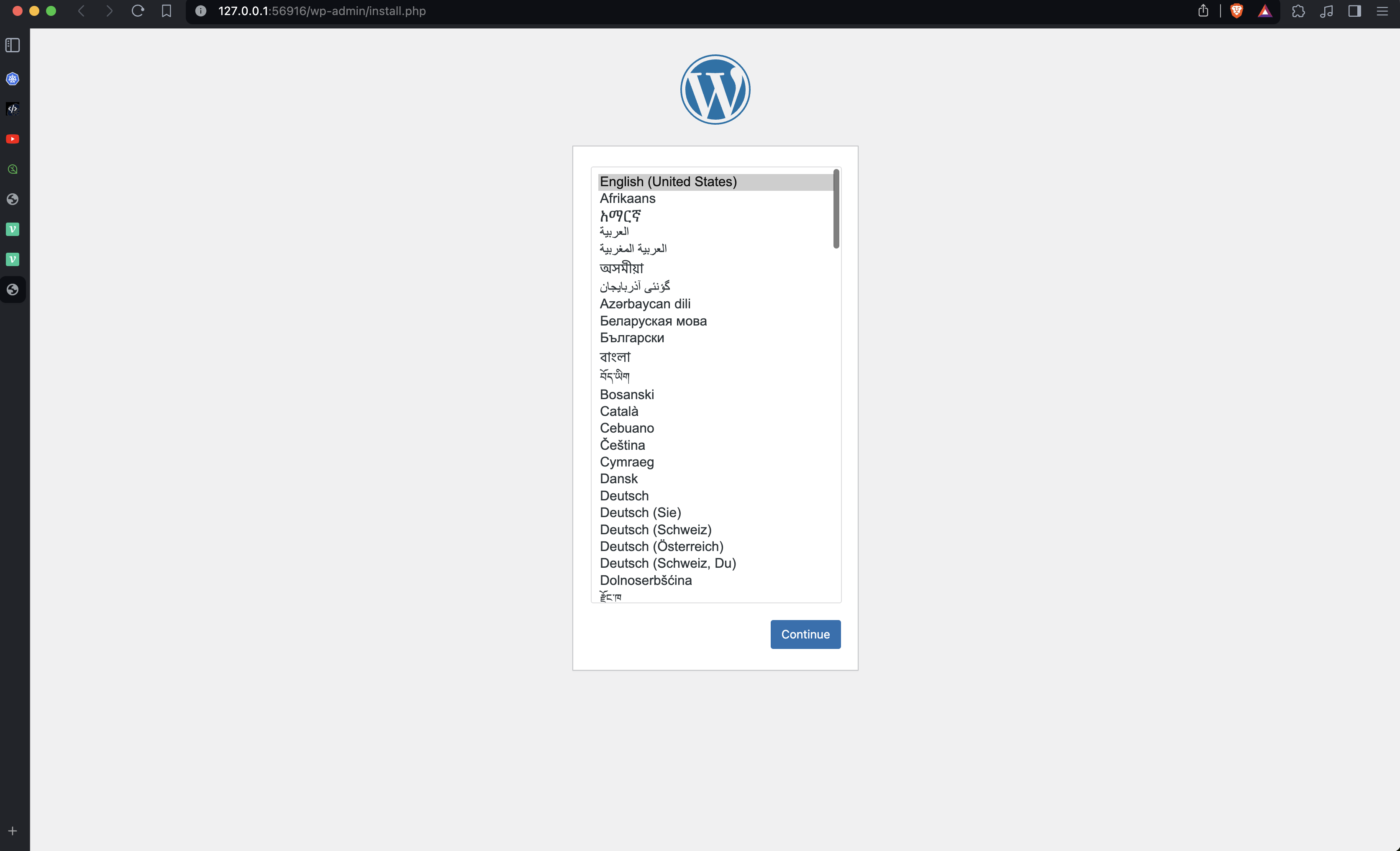
5. Scale it to two replicas
At the moment, kubectl get all shows only one pod/wordpress. If you delete the pod with kubectl delete ${pod-name},
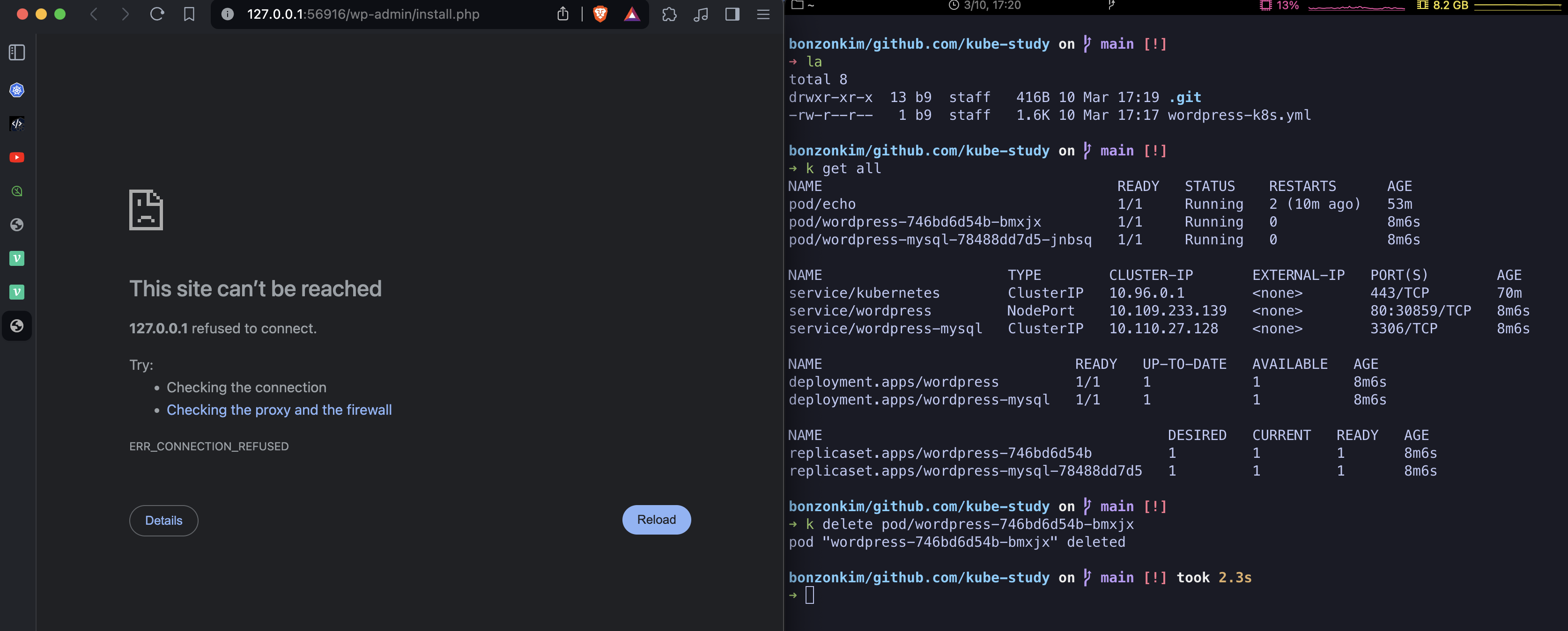 the connection is interrupted like this. However, Kubernetes immediately brings it back, so it becomes accessible again shortly afterward.
Now let’s scale it to two replicas so that deleting one doesn’t interrupt the connection.
Open the wordpress-k8s.yml file and
apiVersion: apps/v1
kind: Deployment
metadata:
  name: wordpress
  labels:
    app: wordpress
spec:
  replicas: 2
  selector:
    matchLabels:
      app: wordpress
      tier: frontend
  template:
    metadata:
      labels:
        app: wordpress
        tier: frontend
    spec:
      containers:
        - image: wordpress:5.9.1-php8.1-apache
          name: wordpress
          env:
            - name: WORDPRESS_DB_HOST
              value: wordpress-mysql
            - name: WORDPRESS_DB_NAME
              value: wordpress
            - name: WORDPRESS_DB_USER
              value: root
            - name: WORDPRESS_DB_PASSWORD
              value: password
          ports:
            - containerPort: 80
              name: wordpress
under spec in the wordpress Deployment, add replicas: 2, then apply it again with kubectl apply -f wordpress-k8s.yml.
Then check with kubectl get all:
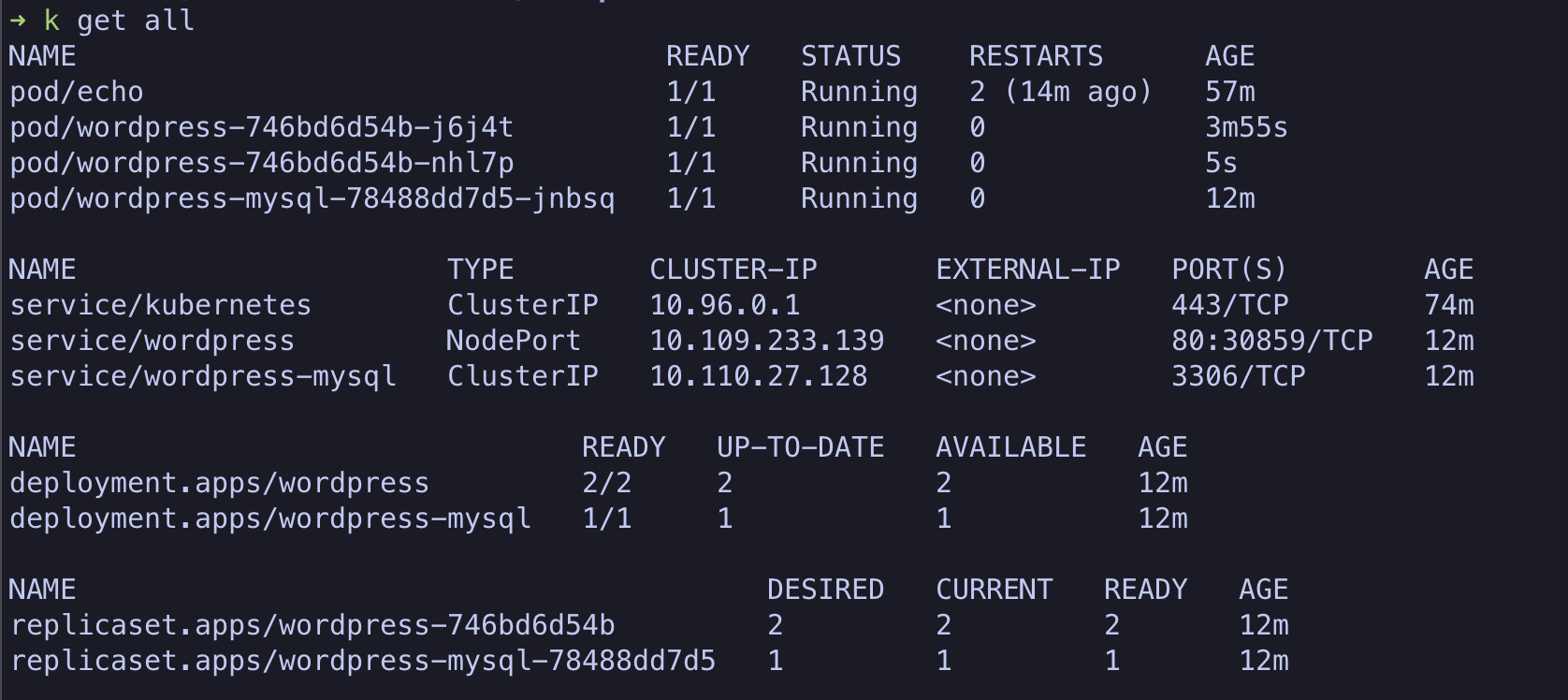
Unlike before, we can see two pod/wordpress instances. Now, deleting one pod/wordpress won’t interrupt the connection.