Let’s use Docker to create an Ubuntu image with git installed.
1. Run Vanilla Ubuntu
Let’s run an Ubuntu image with nothing installed.
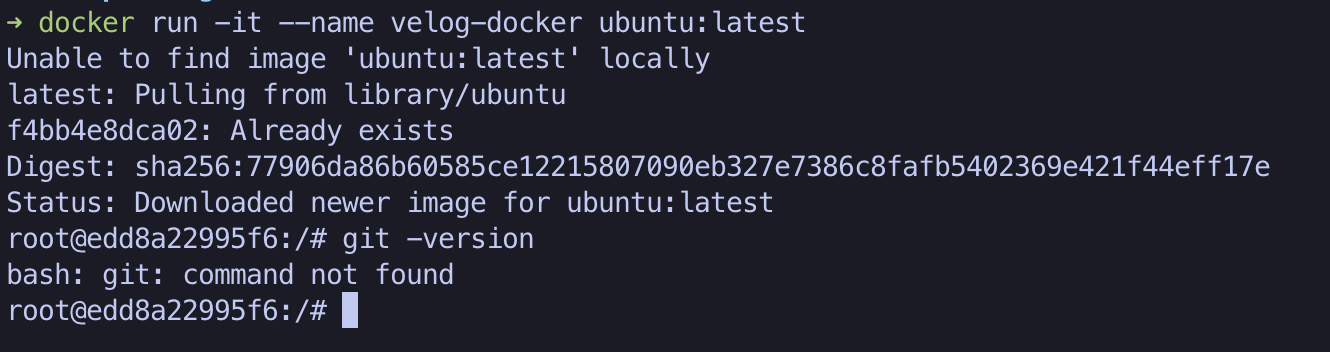
docker run -it --name velog-docker ubuntu:latest
This means run a container using the image from the latest tag of the Ubuntu repository, and name it velog-docker.
docker run -it --name velog-docker ubuntu:latest
Unable to find image 'ubuntu:latest' locally
latest: Pulling from library/ubuntu
f4bb4e8dca02: Already exists
Digest: sha256:77906da86b60585ce12215807090eb327e7386c8fafb5402369e421f44eff17e
Status: Downloaded newer image for ubuntu:latest
root@edd8a22995f6:/#
I had run it before, so it showed Already exists.
I connected to Ubuntu and opened bash.
Then, running the git --version command reports that it can’t find the git command. That’s expected, since it hasn’t been installed yet.
Now let’s install git, step by step.
1.`apt-get update`
2.`apt-get install git -y`
Remember this order.
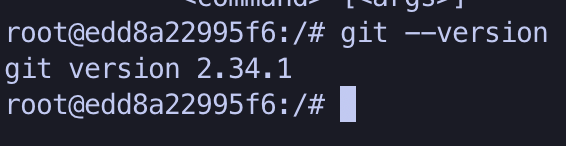
Running git --version again now displays the version because it has been installed.
2. Commit the current state and create a custom image
Let’s commit the current state of Ubuntu with git installed so we can use it as an image.
docker commit ${container name} ${reposetory}:${tag}
➜ docker commit velog-docker ubuntu:velog
sha256:a2ef40a07b899a20064f511942355d3a8ecc3e1f6367d1d73feba77903fecebc

Desktop/velog/20. docker
➜ docker images
REPOSITORY                   TAG       IMAGE ID       CREATED         SIZE
ubuntu                       velog     a2ef40a07b89   3 seconds ago   188MB
I committed the container using its name, velog-docker, and added the velog tag. Then I used the docker images command to check the image and confirm that it was committed.
3. Run a container using the custom image
Now let’s run a container using the image we just made.
Since git is installed in the image we just created, git should be available when the container starts.
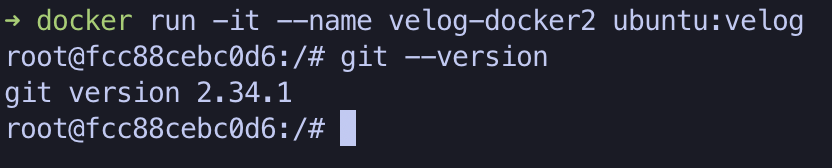
docker run -it --name velog-docker2 ubuntu:velog
This time, the container is named velog-docker2, and since we’re using the image we just created, we use ubuntu:velog.
Once it runs, execute git --version to check whether git is installed.
4. Build with a Dockerfile
If we manage this sequence of steps in a single file, maintenance and collaboration will be easier.
So let’s use a Dockerfile.
First, create a Dockerfile and write its contents.
FROM ubuntu:latest

RUN apt-get update
RUN apt-get install git -y
This is the same sequence for installing git that we saw in section 1.
We’re simply managing as a file what we previously entered on the command line.
docker build -t ubuntu:velog-git-docker .
docker build: The command to build a Docker image.-t ubuntu:velog-git-docker: This flag assigns a tag to the built image. Here, it assigns thevelog-git-dockertag to theubunturepository..: Uses the current directory as the build context. Docker builds the image based on the current directory and its subdirectories and files.
Therefore, this command builds a new image using the Dockerfile in the current directory and saves it in the ubuntu repository with the velog-git-docker tag.
Now that we’ve built the image, let’s run a container using it.
docker run -it --name velog-docker3 ubuntu:velog-git-docker
The container is named velog-docker3, and the image we’ll use is ubuntu:velog-git-docker, which we just built with the Dockerfile.
Once it runs, execute git --version to check whether git was installed.

Closing thoughts
I’m studying Docker. I’ll write posts step by step so I don’t forget what I learn. Thank you.
>> Home