Master Server
1. Install the NFS server on the master server
- Install NFS (Network File System)
apt-get install nfs-kernel-server - Start the NFS server
systemctl start nfs-server
2. Specify the shared directory
Create the directory to share
mkdir /data/nfsk8sSpecify the shared directory
vim /etc/expoertsAdd<directory path> <\IP>(\<permissions>)to the bottom of the file. Do not add spaces when entering permissions: (ro, rw) X → (ro,rw) O Apply permissions to all IPs/data/nfsk8s *(rw,sync,no_root_squash)
Then restart NFS:
systemctl restart nfs-server
NFS options:
ro: Grants read-only access.

rw: Grants read and write access.

root_squash: Maps the client root account to the nobody account on the server.

no_root_squash: Allows the root account on both the client and server.

sync: Writes filesystem changes synchronously.

all_squash: Maps all client users, not only root, to the anonymous account.
Client (worker node) server
1. Install the NFS client
- Install the NFS client
apt-get install nfs-common - Check the shared directory
showmount -e ${nfs server IP}
2. Mount
Create the mount directory
mkdir /data/nfsk8sMount
mount -t nfs ${nfs server IP}:/${nfs server shared directory} ${client mount directory}Verify the mount
df | grep nfsConfigure NFS to mount automatically after reboot
vim /etc/fstab${nfs server IP}:/${nfs server shared directory} nfs defaults 0 0
3. Verify that it is mounted
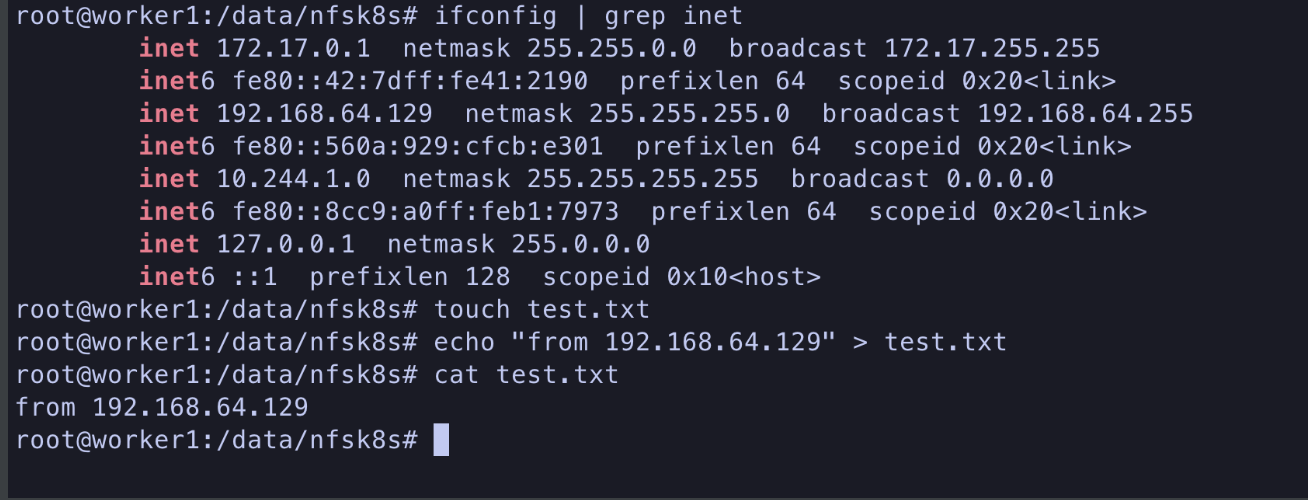 Create a
 test.txt file on 192.168.64.129.
If we check the shared NFS directory on server 131, the NFS server:
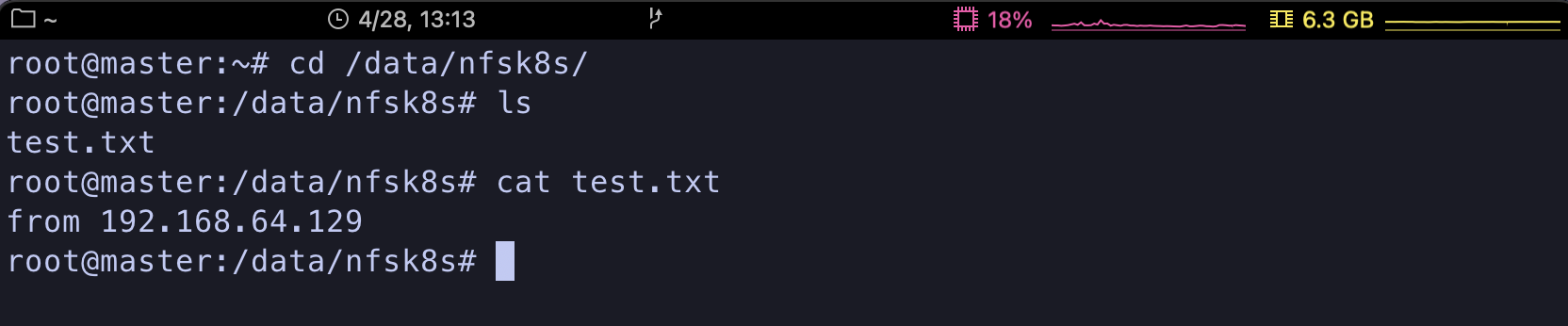 we can see that it has been shared.
Master node
1. Install StorageClass
StorageClass is a provisioning method that dynamically creates volumes in a cloud environment to meet the requirements of a PV. In other words, when a PV specifies volume size, whether it should be an SSD, filesystem type, zone, and so on, it creates a matching volume.
Install it using helm.
# Add the StorageClass repository
helm repo add nfs-subdir-external-provisioner https://kubernetes-sigs.github.io/nfs-subdir-external-provisioner/

# Verify the StorageClass repository
helm repo list
# Install the StorageClass provisioner
helm install nfs-subdir-external-provisioner nfs-subdir-external-provisioner/nfs-subdir-external-provisioner \
 --set nfs.server=${NFS_SERVER_IP} \
 --set nfs.path=${NFS_SERVER_SHARED_DIRECTORY} \
 --set storageClass.name=nfs \
 --set storageClass.defaultClass=true
# Verify the installation
kubectl get sc
2. Use storageClass
Now specify StorageClassName in the existing PVC. When you check StorageClass with kubectl get sc, its name is nfs, so enter nfs for StorageClassName. After installing with helm, a data folder appears in the shared directory.

References:
https://junwork123.tistory.com/33
https://www.digitalocean.com/community/tutorials/how-to-set-up-an-nfs-mount-on-ubuntu-20-04