Last time, when I used kubespray and ansible to build a Kubernetes cluster, the final MetalLB installation failed. Today I’ll install it.
1. Install MetalLB
I followed the official documentation.
kubectl apply -f https://raw.githubusercontent.com/metallb/metallb/v0.14.8/config/manifests/metallb-native.yaml
Run the command above to install it.
1-1. Modify the kube-proxy ConfigMap
In IPVS mode, MetalLB performs load balancing by strictly controlling ARP responses. When strictARP is enabled in this mode, kube-proxy ensures that only the explicitly designated node handles ARP responses for an IP assigned to a node.
Open the editor with kubectl edit cm -n kube-system kube-proxy and
change strictARP: false to strictARP: true.
After saving and exiting, restart kube-proxy with kubectl rollout restart daemonset -n kube-system kube-proxy.
1-2. Configure IpAddressPool
Last time, creating this IpAddressPool resource broke kubectl. The reason was:
controlplane: 192.168.64.176
node1: 192.168.64.177
node2: 192.168.64.178
I then wrote this:
apiVersion: metallb.io/v1beta1
kind: IPAddressPool
metadata:
  name: cluster-ip-pool
  namespace: metallb-system
spec:
  addresses:
  - 192.168.64.176-192.168.64.178
and applied it.
I foolishly configured the same IP range as the nodes, causing an IP conflict. Attempts to access the nodes at those IPs were handled as service IPs, blocking access to the API server through kubectl and breaking the kubectl commands.
So, configure IPs that do not conflict.
- ipAddressPool.yaml
apiVersion: metallb.io/v1beta1
kind: IPAddressPool
metadata:
  name: cluster-ip-pool
  namespace: metallb-system
spec:
  addresses:
  - 192.168.64.180-192.168.64.189
Now it is created successfully, and the kubectl command continues to work.
1-3. Configure L2Advertisement
Now that the IpAddressPool resource has been created, use that pool.
- l2Advertisement.yaml
apiVersion: metallb.io/v1beta1
kind: L2Advertisement
metadata:
  name: cluster-l2-advertisement
  namespace: metallb-system
spec:
  ipAddressPools:
  - cluster-ip-pool
Set spec.ipAddressPools[0] to the metadata.name from the IPAddressPool manifest.
1-1–1-3 all at once with a script
As I automated this, I wanted to make it more convenient and do everything at once, so I wrote a script.
- install-metllb.sh
#!/bin/bash
# Set strictARP to true
kubeproxytmp=$(mktemp)
kubectl get cm -n kube-system kube-proxy -o yaml > $kubeproxytmp
sed -i '' 's/strictARP: false/strictARP: true/' $kubeproxytmp
kubectl replace -f $kubeproxytmp -n kube-system
rm $kubeproxytmp


# Install MetalLB
kubectl apply -f https://raw.githubusercontent.com/metallb/metallb/v0.14.8/config/manifests/metallb-native.yaml
echo -e "\n MetalLB Successfully Installed.\n"

echo "\nWating to ensure CRDs are installed... \n"

sleep 5
# Verify that MetalLB was installed
kubectl get all -n metallb-system

# Create an IPAddressPool
pooltmp=$(mktemp)

cat<<EOF > $pooltmp
apiVersion: metallb.io/v1beta1
kind: IPAddressPool
metadata:
  name: cluster-ip-pool
  namespace: metallb-system
spec:
  addresses:
  - 192.168.64.180-192.168.64.189
EOF

kubectl apply -f $pooltmp
echo -e "\nSuccessfully created IPAddressPool \n"
rm $pooltmp
# Create an L2Advertisement
l2advertisementtmp=$(mktemp)

cat<<EOF > $l2advertisementtmp
apiVersion: metallb.io/v1beta1
kind: L2Advertisement
metadata:
  name: cluster-l2-advertisement
  namespace: metallb-system
spec:
  ipAddressPools:
    - cluster-ip-pool
EOF

kubectl apply -f $l2advertisementtmp
echo -e "\nSuccefully created L2Advertisement"
rm $l2advertisementtmp
1-4. Confirm external IP assignment to ingress controller
Now all required resources have been created.
When we check ingress-nginx:

we can confirm that the external-ip was assigned from the IpAddressPool I configured.
2. Test!
Now that everything is configured, let’s create a LoadBalancer-type service and check that it works correctly.
We’ll create two nginx deployments and services, store different pages as HTML in ConfigMaps, and display them. Then we’ll create an ingress and confirm it works.
The flow is shown simply in this diagram:
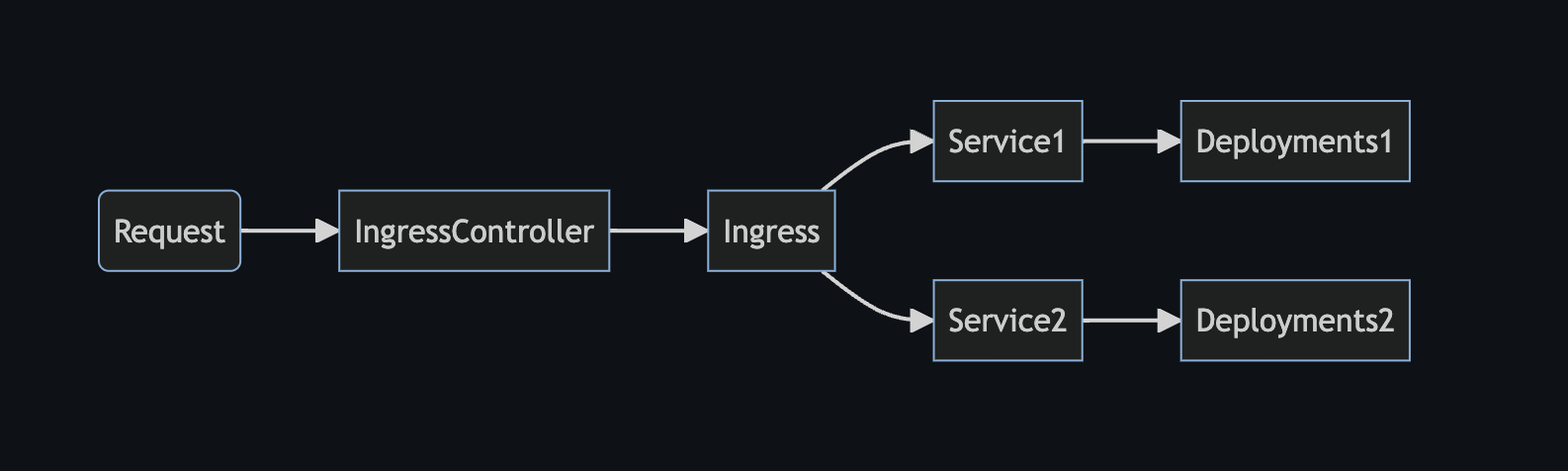
In other words, send a request to Ingress-nginx (the assigned External-IP); it sends the request to the Ingress resource, which routes it to the configured Service.
2-0. Ingress-nginx Selector
Before testing, if we inspect the Ingress-nginx endpoints, they show none.
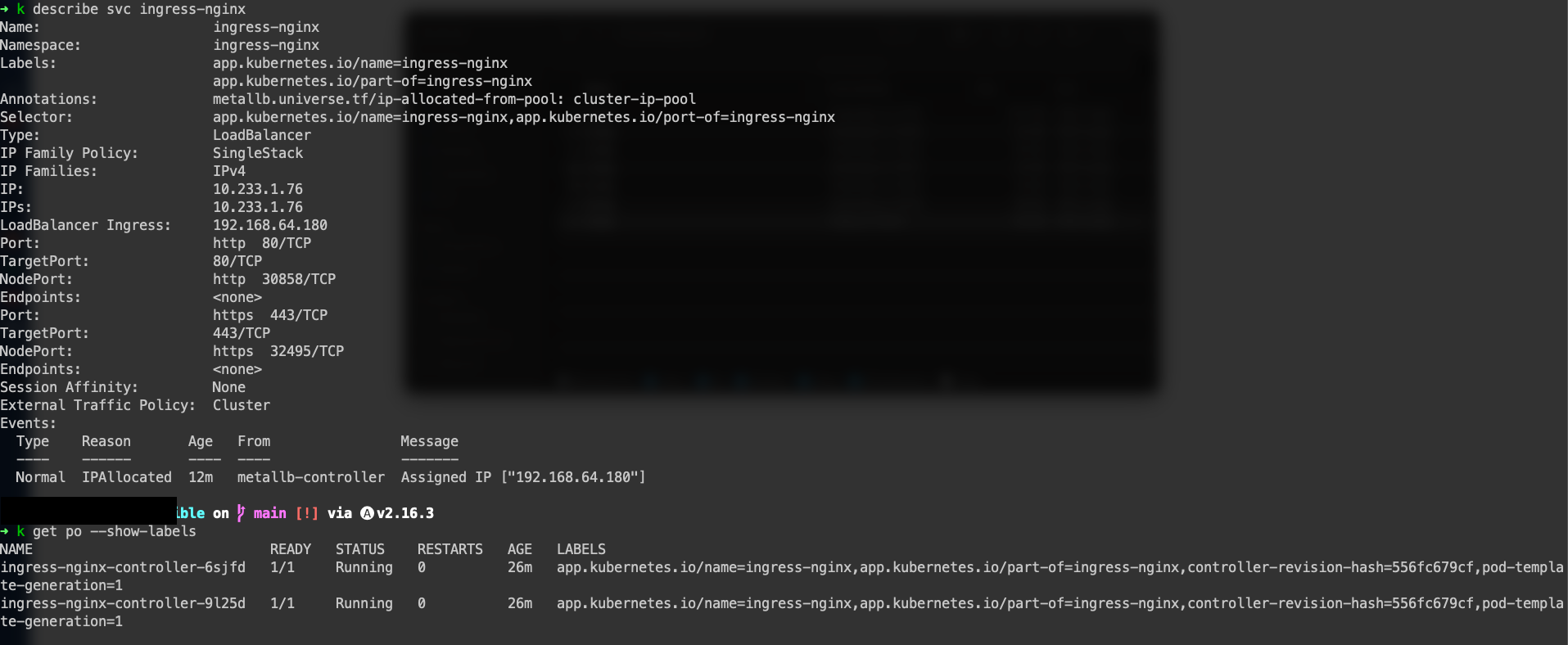 The reason is that the Pod labels for
 Ingress-nginx differ from the label value in the Service Selector. It cannot select the correct Pod, so there are no endpoints (nothing is selected), and it displays none.
Open the editor with kubectl edit svc -n ingress-nginx ingress-nginx,
change spec.selector.app.kubernetes.io/port-of to spec.selector.app.kubernetes.io/part-of, save, and exit.
Check the endpoints again after exiting; you should now see a value.
2-1. Create Deployment and Service
- nginx-deployments.yaml
apiVersion: apps/v1
kind: Deployment
metadata:
  name: nginx-app1
  namespace: test
spec:
  replicas: 1
  selector:
    matchLabels:
      app: nginx-app1
  template:
    metadata:
      labels:
        app: nginx-app1
    spec:
      containers:
      - name: nginx
        image: nginx
        volumeMounts:
        - name: app1-vol
          mountPath: /usr/share/nginx/html
      volumes:
      - name: app1-vol
        configMap:
          name: app1-html

---
apiVersion: v1
kind: Service
metadata:
  name: nginx-svc1
  namespace: test
spec:
  selector:
    app: nginx-app1
  ports:
  - port: 80
    targetPort: 80
  type: ClusterIP

---
apiVersion: apps/v1
kind: Deployment
metadata:
  name: nginx-app2
  namespace: test
spec:
  replicas: 1
  selector:
    matchLabels:
      app: nginx-app2
  template:
    metadata:
      labels:
        app: nginx-app2
    spec:
      containers:
      - name: nginx
        image: nginx
        volumeMounts:
        - name: app2-vol
          mountPath: /usr/share/nginx/html
      volumes:
      - name: app2-vol
        configMap:
          name: app2-html

---
apiVersion: v1
kind: Service
metadata:
  name: nginx-svc2
  namespace: test
spec:
  selector:
    app: nginx-app2
  ports:
  - port: 80
    targetPort: 80
  type: ClusterIP
Create two nginx deployments and services.
2-2. Create ConfigMaps
- nginx-configmap.yaml
apiVersion: v1
kind: ConfigMap
metadata:
 name: app1-html
 namespace: test
data:
 index.html: |
   <html>
   <head><title>App 1</title></head>
   <body>
   <h1>This is App 1</h1>
   </body>
   </html>
---
apiVersion: v1
kind: ConfigMap
metadata:
 name: app2-html
 namespace: test
data:
 index.html: |
   <html>
   <head><title>App 2</title></head>
   <body>
   <h1>This is App 2</h1>
   </body>
   </html>
2-3. Create Ingress
apiVersion: networking.k8s.io/v1
kind: Ingress
metadata:
  name: nginx-ingress
  namespace: test
  annotations:
    nginx.ingress.kubernetes.io/rewrite-target: /
spec:
  ingressClassName: nginx
  rules:
  - http:
      paths:
      - path: /app1
        pathType: Prefix
        backend:
          service:
            name: nginx-svc1
            port:
              number: 80
      - path: /app2
        pathType: Prefix
        backend:
          service:
            name: nginx-svc2
            port:
              number: 80
Since there is no domain yet, create it without specifying a host.
Check with kubectl get ingress:
 The Address is the worker node’s IP. However, connect using the External-IP assigned to the
 Ingress-nginx Service, not this address.
Try visiting http://192.168.64.180/app1.
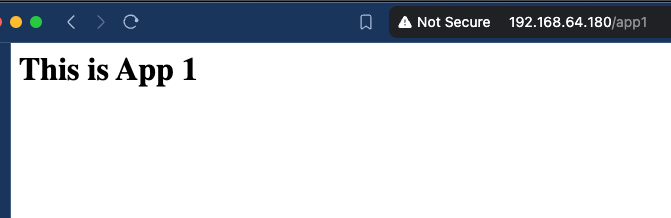
Now try visiting http://192.168.64.180/app2.
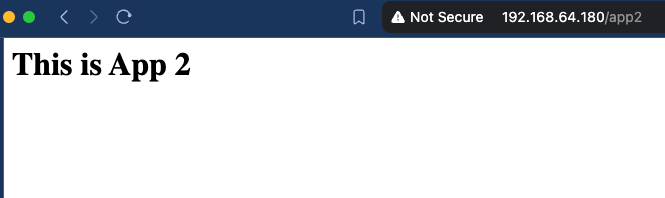
It successfully passes through ingress and connects to the specified service.
Conclusion
Using Kubespray has increased my interest in environment automation. I’ll also introduce a project applying a GitOps strategy and App of Apps pattern using ArgoCD.
I’ll end the post here. Thank you.
>> Home