I attended Docker Community Day, held on February 27. One of the talks was by Geuncheol Yeom, an SRE at Karrot. It seemed like an interesting topic, so I gave it a quick try.
What is MCP?
Model Context Protocol (MCP) is an open protocol that enables seamless integration between LLM (Large Language Model) applications and external data sources and tools. Whether you are building an AI-powered IDE, improving a chat interface, or creating a custom AI workflow, MCP provides a standardized way to connect LLMs to the context they need.
MCP architecture
MCP follows a client-server architecture where:
- Hosts: LLM applications (Claude Desktop or an IDE)
- Clients: Maintain a 1:1 connection to a server from within the host application.
- Servers: Provide context, tools, and prompts to clients.
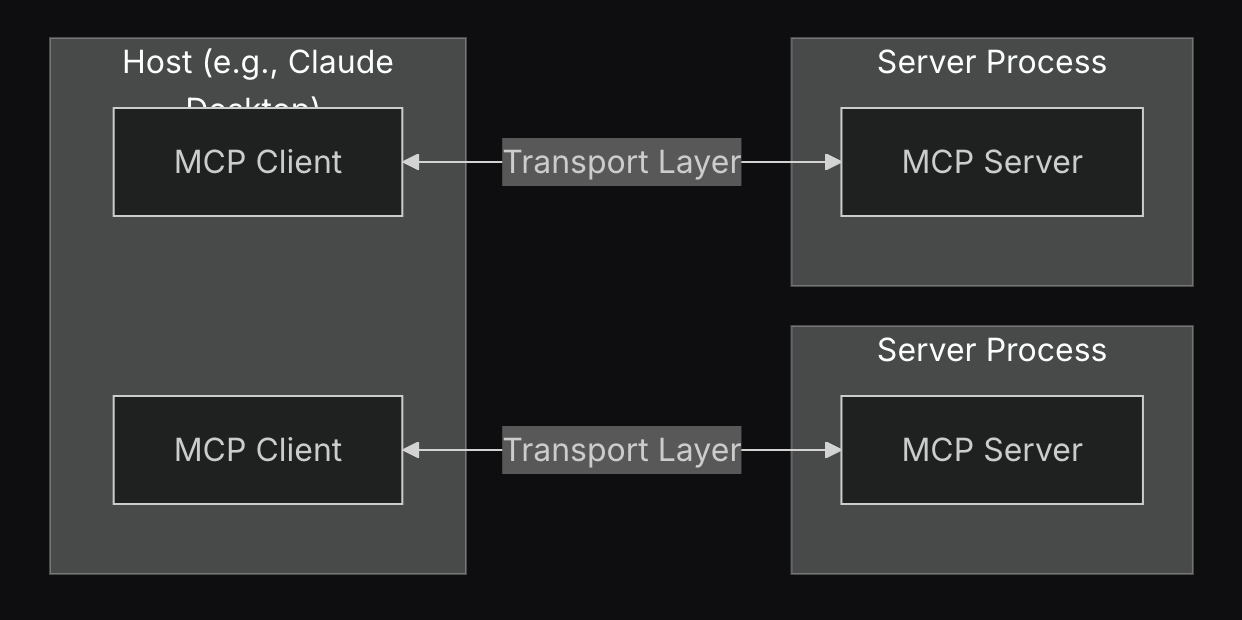
I can’t quite get a sense of what this means just from the explanation… Let’s try it out and see.
1. Let’s ask Claude a question
First, let’s install the Claude Desktop application and make a simple request.
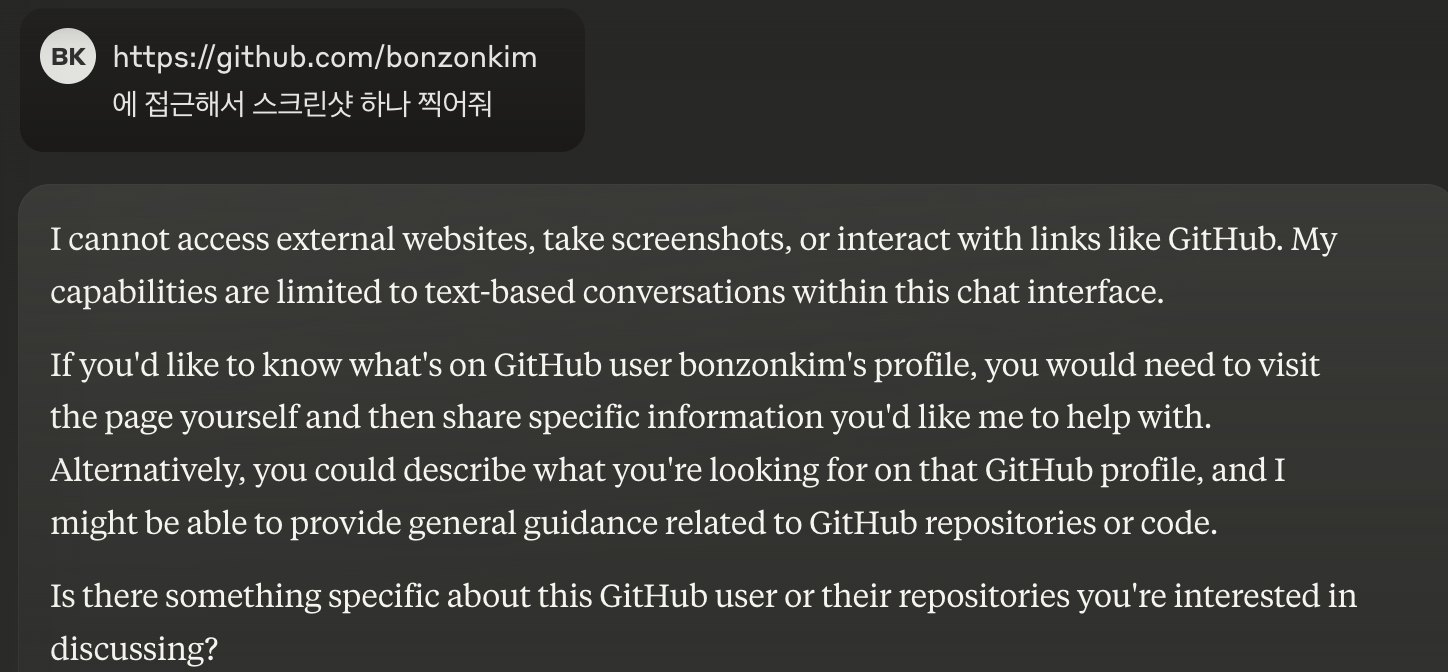
I asked it to access my GitHub and take a screenshot, but it said it couldn’t access external websites. That’s understandable. Now I’ll run an MCP server so Claude can use a browser.
1-1. Clone MCP
Clone the official MCP GitHub repository.
# Change to the cloned repository directory
cd servers

# Build the Puppeteer image
docker build -t mcp/puppeteer -f src/puppeteer/Dockerfile .
Build the officially supported MCP puppeteer as a container image.
1-2. Use the built image as a Claude MCP server
Add the built MCP server to the settings so Claude can use it.
- Mac / Linux
~/Library/Application\ Support/Claude/claude_desktop_config.json - Windows
$env:AppData\Claude\claude_desktop_config.json
Open the file and add:
{
  "mcpServers": {
    "puppeteer": {
      "command": "docker",
      "args": ["run", "-i", "--rm", "--init", "-e", "DOCKER_CONTAINER=true", "mcp/puppeteer"]
    }
  }
}
When using puppeteer, the container image built earlier runs the MCP server, and Claude uses puppeteer.
Claude can now use a browser (puppeteer). Let’s test it.
After editing claude_desktop_config.json, quit and relaunch Claude Desktop.
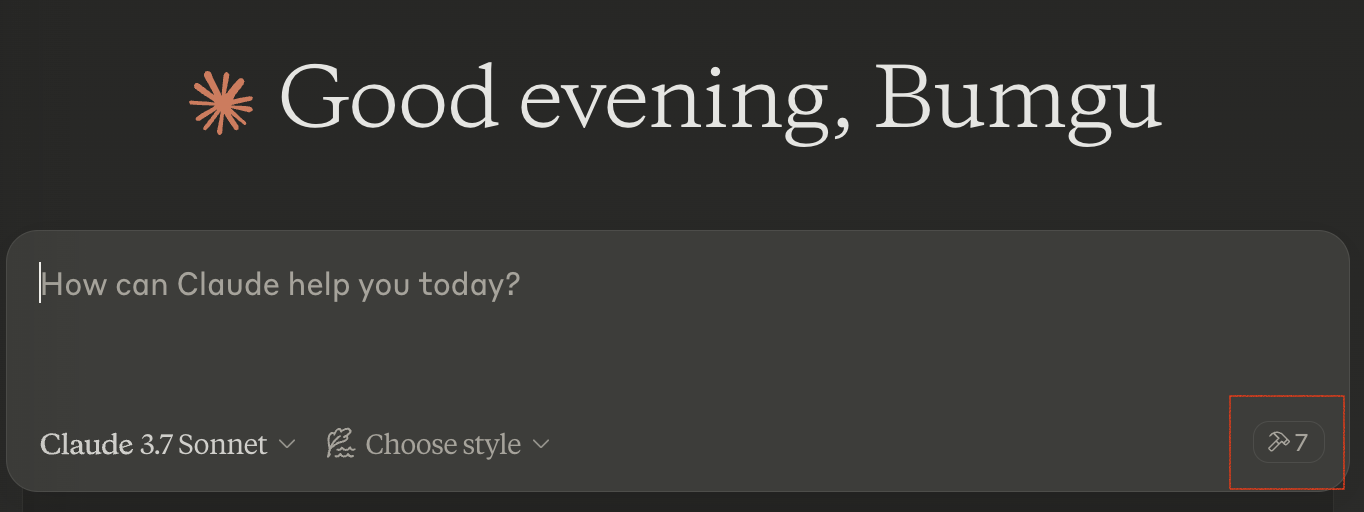
A hammer icon has appeared inside the red box.
Click it:
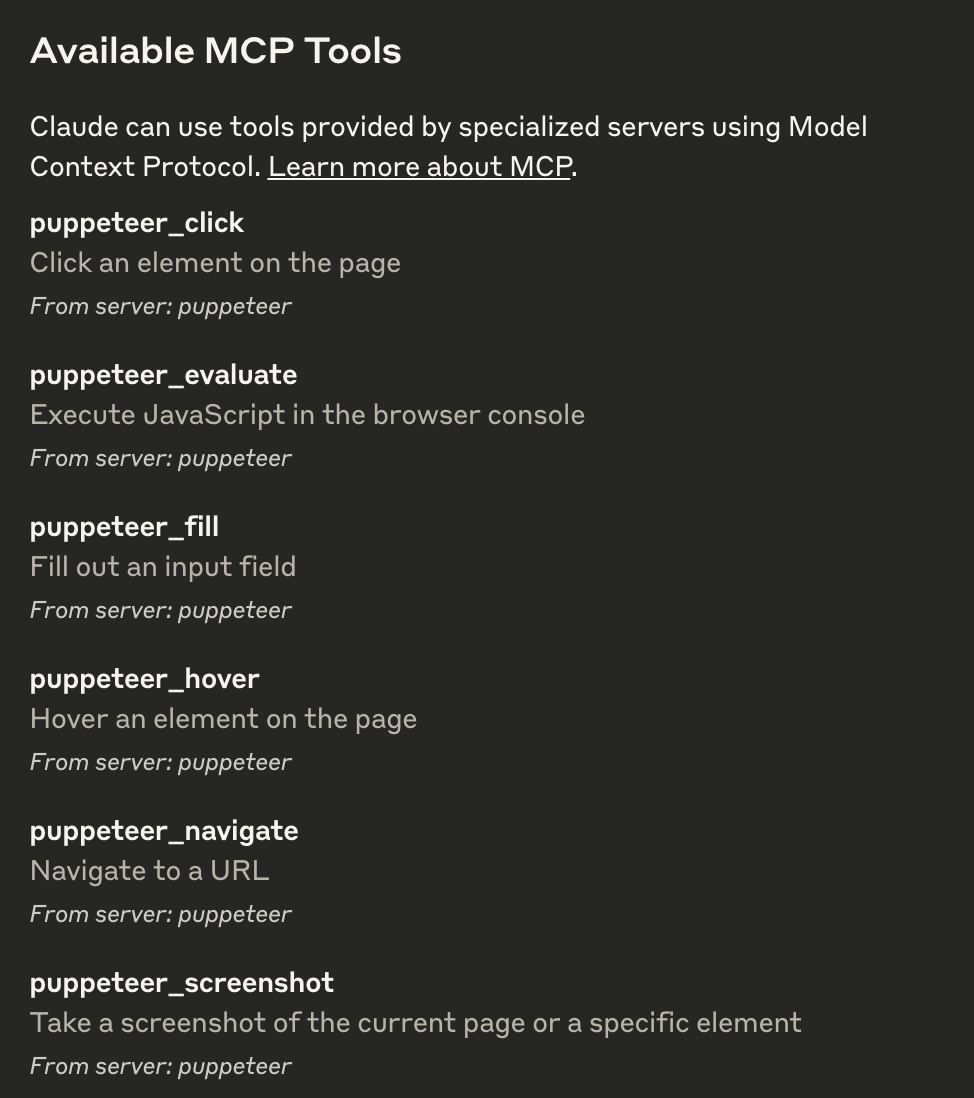
You can see the list of currently available MCP tools.
If you open servers/src/puppeteer/index.ts in the folder cloned earlier, you’ll find:
const TOOLS: Tool[] = [
  {
    name: "puppeteer_navigate",
    description: "Navigate to a URL",
    inputSchema: {
      type: "object",
      properties: {
        url: { type: "string" },
      },
      required: ["url"],
    },
  },
  {
    name: "puppeteer_screenshot",
    description: "Take a screenshot of the current page or a specific element",
    inputSchema: {
      type: "object",
      properties: {
        name: { type: "string", description: "Name for the screenshot" },
        selector: { type: "string", description: "CSS selector for element to screenshot" },
        width: { type: "number", description: "Width in pixels (default: 800)" },
        height: { type: "number", description: "Height in pixels (default: 600)" },
      },
      required: ["name"],
    },
  },
  {
    name: "puppeteer_click",
    description: "Click an element on the page",
    inputSchema: {
      type: "object",
      properties: {
        selector: { type: "string", description: "CSS selector for element to click" },
      },
      required: ["selector"],
    },
  },
  {
    name: "puppeteer_fill",
    description: "Fill out an input field",
    inputSchema: {
      type: "object",
      properties: {
        selector: { type: "string", description: "CSS selector for input field" },
        value: { type: "string", description: "Value to fill" },
      },
      required: ["selector", "value"],
    },
  },
  {
    name: "puppeteer_select",
    description: "Select an element on the page with Select tag",
    inputSchema: {
      type: "object",
      properties: {
        selector: { type: "string", description: "CSS selector for element to select" },
        value: { type: "string", description: "Value to select" },
      },
      required: ["selector", "value"],
    },
  },
  {
    name: "puppeteer_hover",
    description: "Hover an element on the page",
    inputSchema: {
      type: "object",
      properties: {
        selector: { type: "string", description: "CSS selector for element to hover" },
      },
      required: ["selector"],
    },
  },
  {
    name: "puppeteer_evaluate",
    description: "Execute JavaScript in the browser console",
    inputSchema: {
      type: "object",
      properties: {
        script: { type: "string", description: "JavaScript code to execute" },
      },
      required: ["script"],
    },
  },
];
These tools are defined here and made available to Claude through MCP. Let’s ask the same question again!
1-3. Ask Claude again using MCP
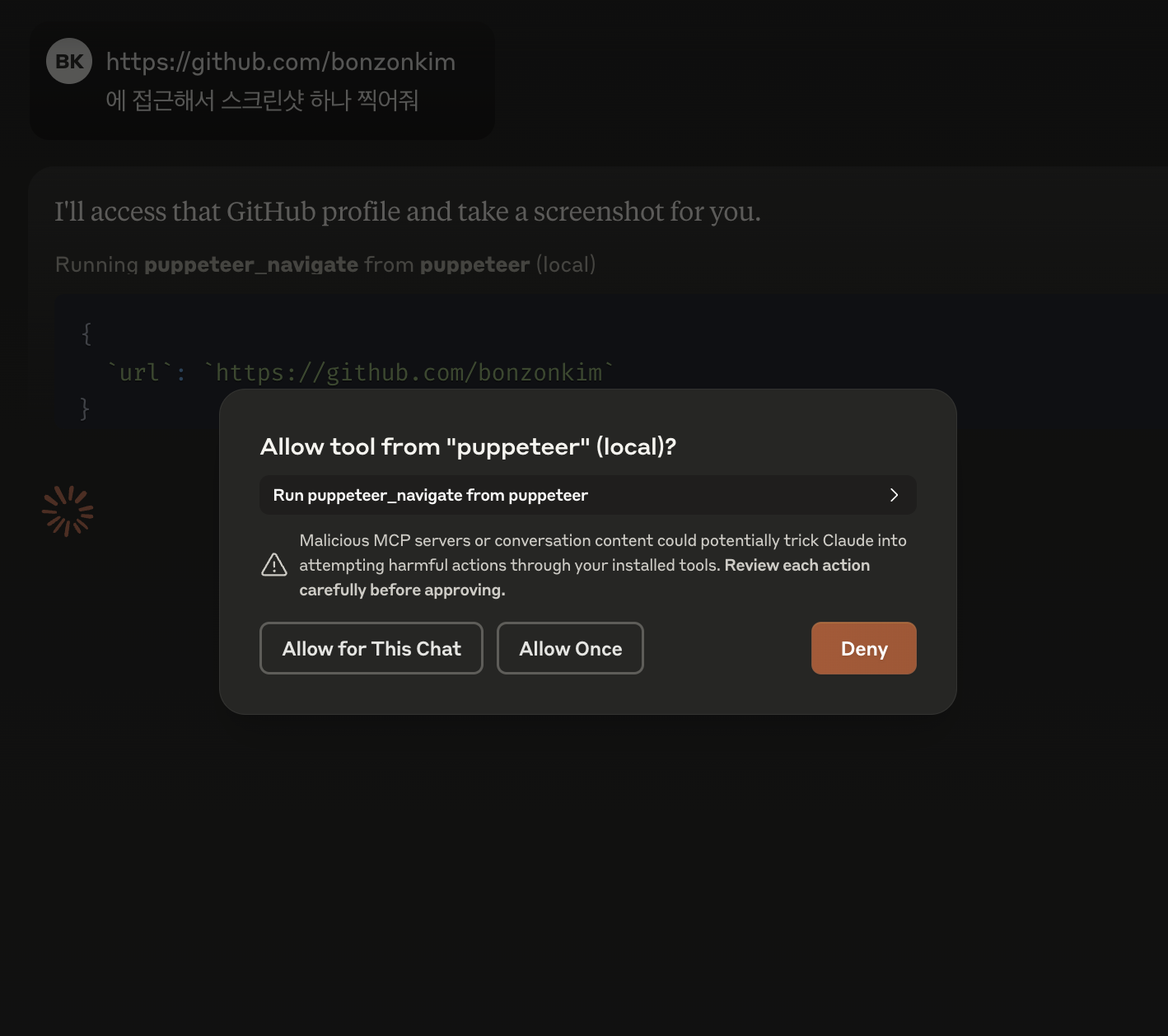
I asked the same question, and Claude says it will access GitHub and asks for permission. I’ll allow it by clicking Allow for This Chat.
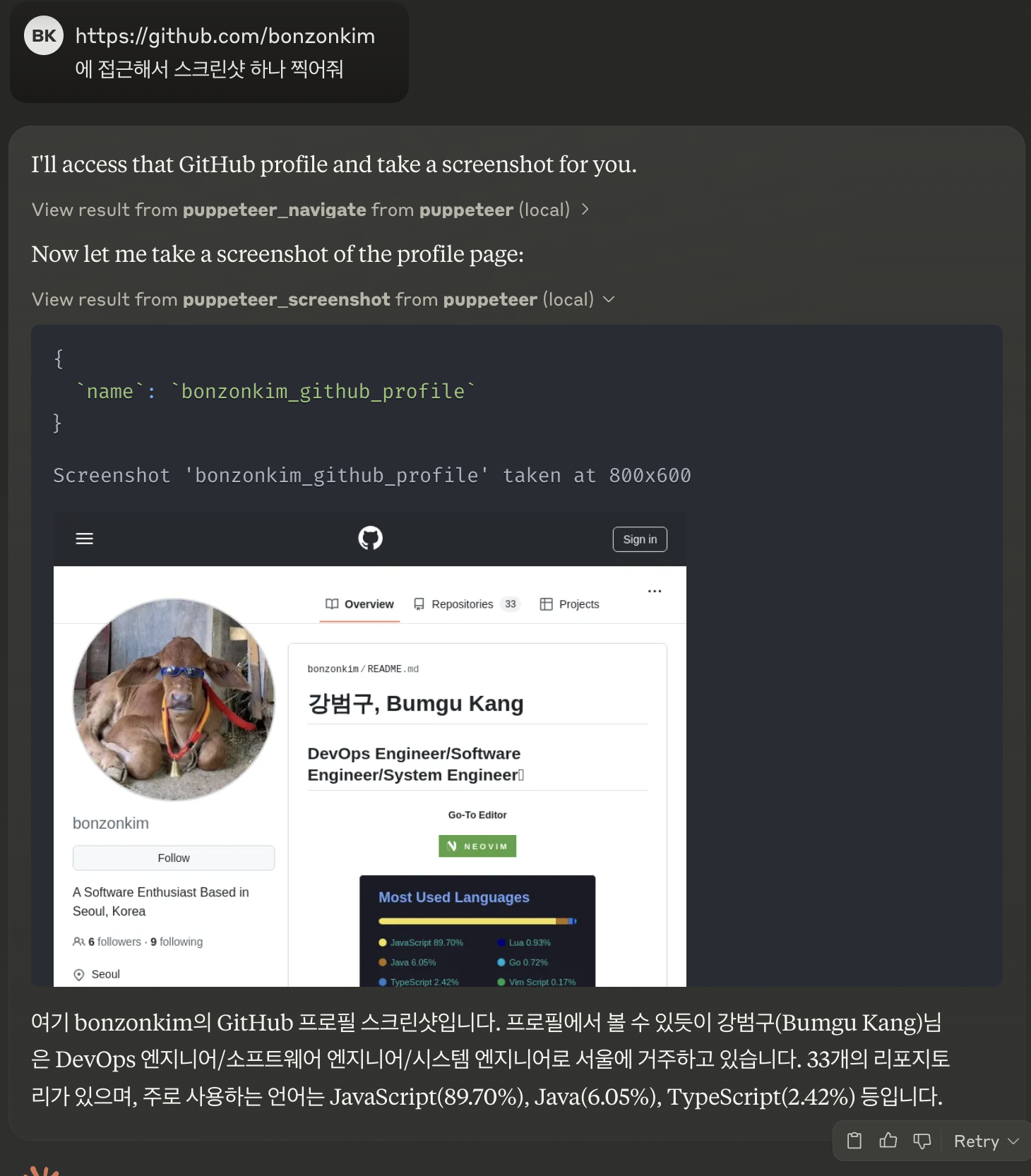
Claude used puppeteer_navigate and puppeteer_screenshot to access GitHub and take a screenshot.
Let’s ask it to do one more thing. I’ll ask it to find only the Go-language repositories among my repository list.
Let me check the repositories and find the ones written in Go language.

Let me try a different selector for the Repositories tab:

Now let me take a screenshot of the repositories page to identify Go repositories:

I can see one Go repository on this page: "minio-cleanup" (marked with the Go language tag). Let me scroll down to check if there are more Go repositories:

I can see more Go repositories in this view. Let me continue scrolling to check if there are additional ones:

Let me continue scrolling to see if there are more repositories:

Let me continue checking for more repositories:

Let me continue scrolling to check for more repositories:

Let me look at the final page of repositories to make sure I find all Go repositories:


I'll check if there are more pages of repositories by clicking the "Next" button:

Let me continue checking for more Go repositories:

Let me check for more pages:

Let me try another selector for the next page:

Let me try one more approach:

Based on the screenshots I've gathered, I can now provide a list of all the Go language repositories from bonzonkim's GitHub profile:

1. **minio-cleanup** - Updated last week
2. **url-shortener** - Updated last month
3. **go-crud** - Updated on Jan 19
4. **spotify-go** - Updated on Jan 1
5. **distributed-minio-logs** - Updated on Dec 21, 2024
6. **jaeger-trace** - Updated on Dec 5, 2024

These are all the repositories written in Go language that are visible in bonzonkim's GitHub profile. Each one is marked with the Go language tag (blue dot with "Go" label).
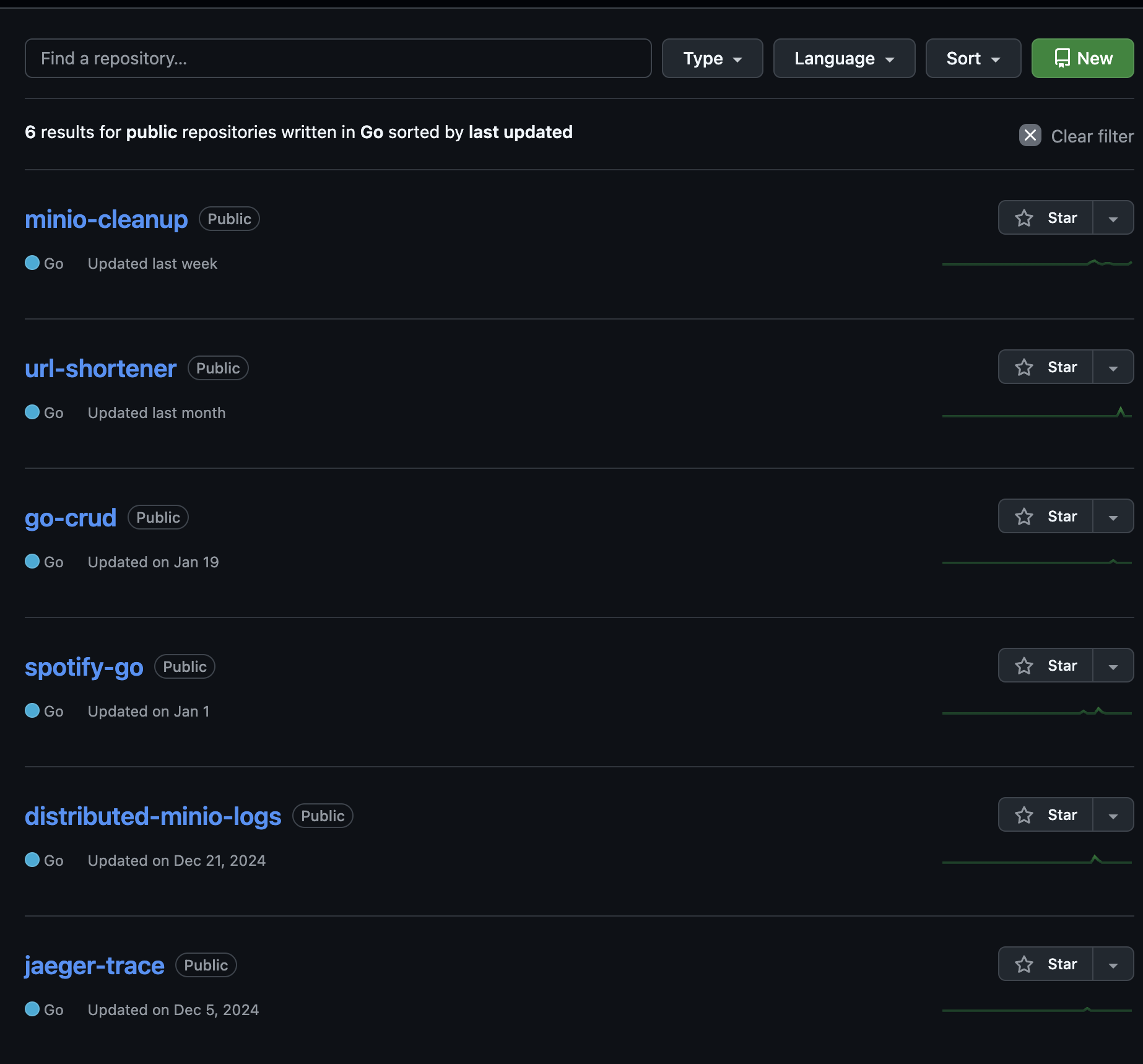
Creepy…
It got the answer exactly right.
Looking at Claude’s response, at first:
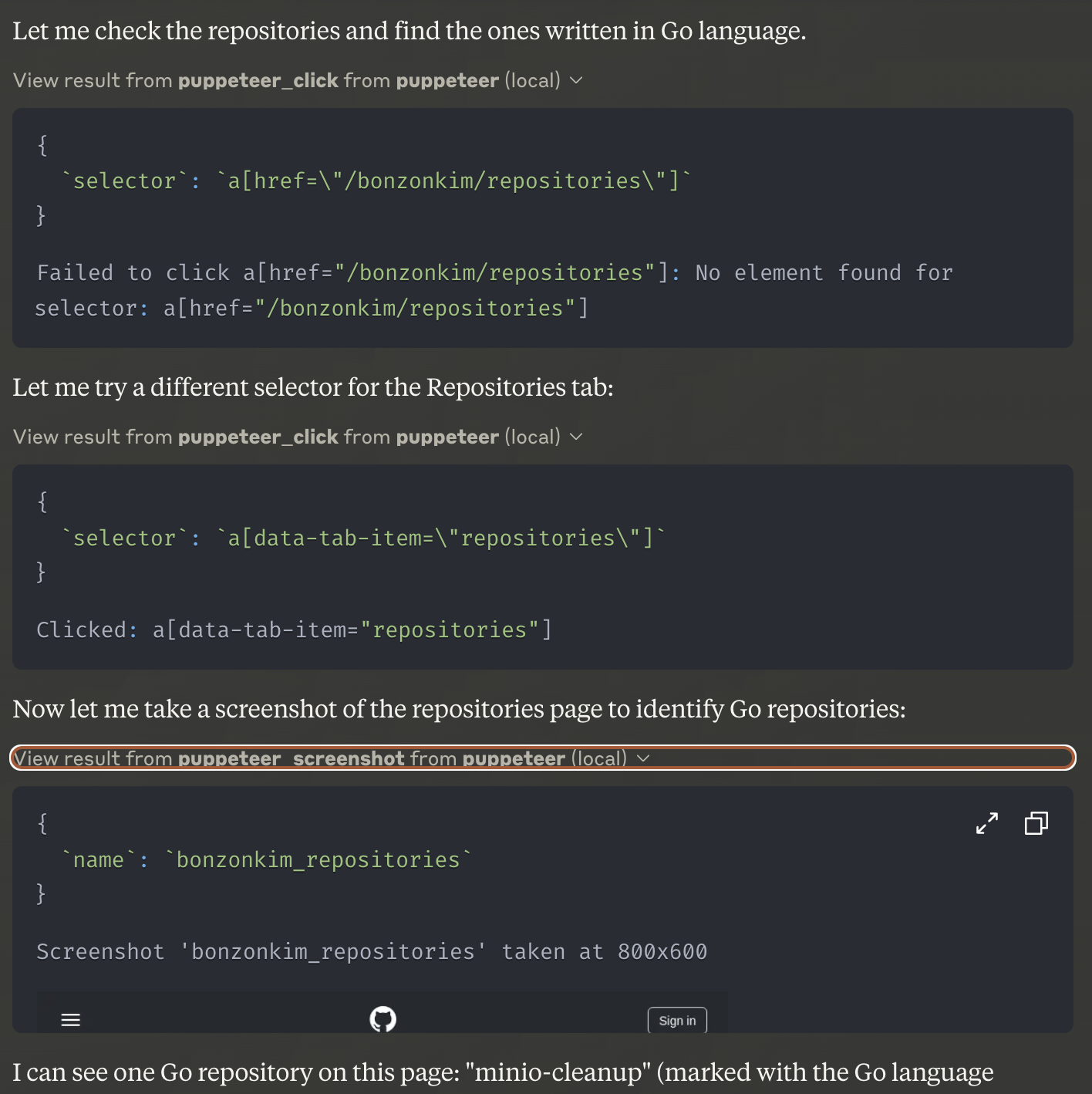
It says it will try a different selector, perhaps because the first click didn’t work. Then it takes a screenshot of the Repositories tab:
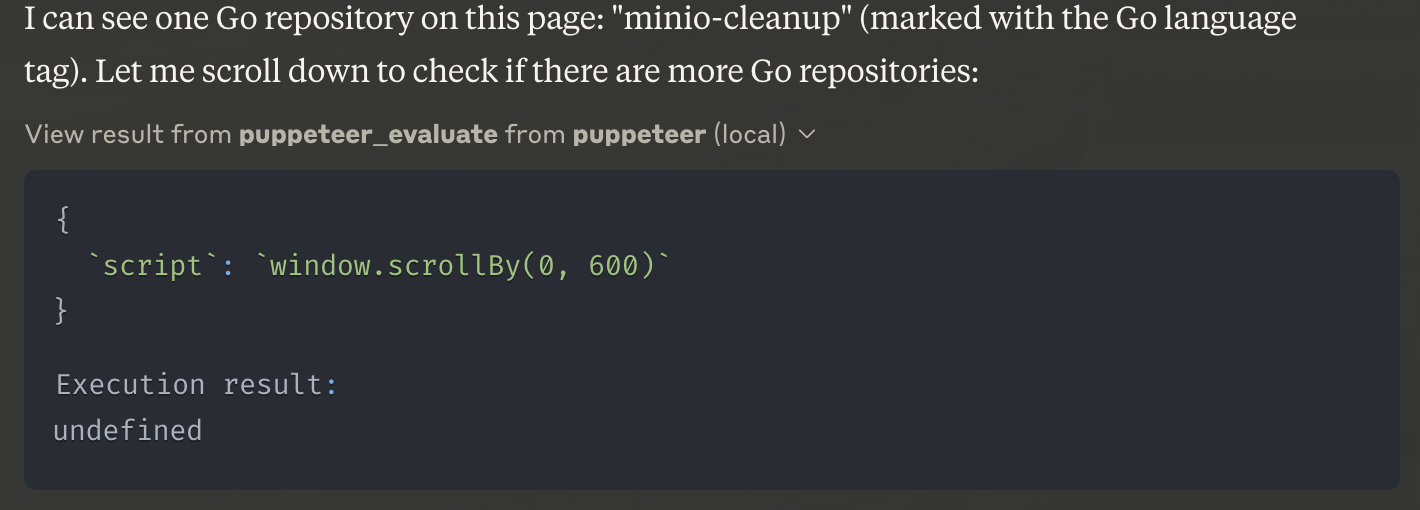
It sees only one Go repository on the current page and says it will scroll down.
After scrolling to the bottom, it checks for a Next Page button and clicks it.
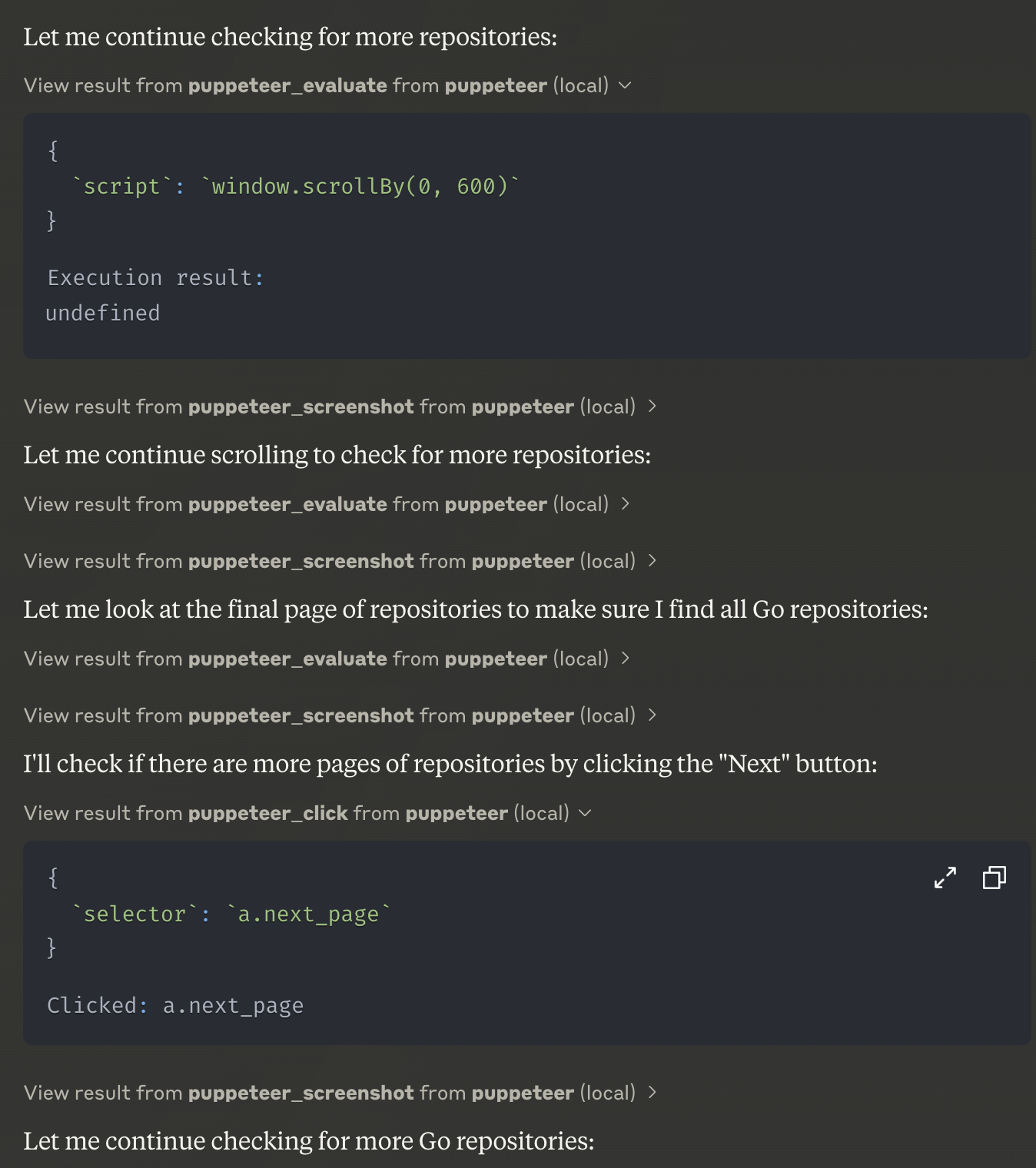
The result:
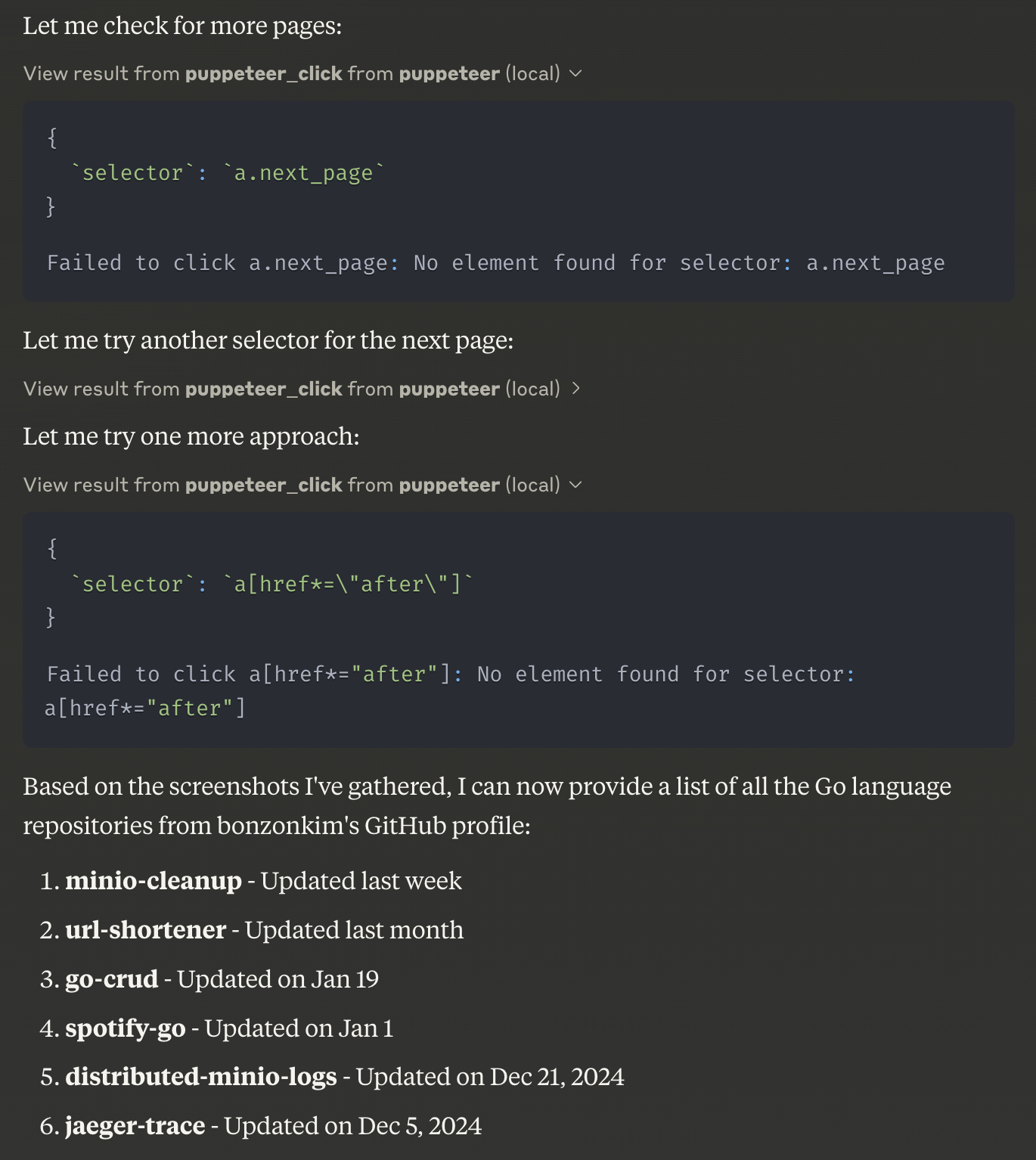
After reaching the bottom of the page again, it checks for Next Page. Since there isn’t one, it decides it’s done and summarizes the repositories it has found so far.
When I tested this before writing the post, what surprised me was that it found the list in a different way. During that test, it selected Go from the Language dropdown on GitHub’s Repositories tab and built the list that way.
From this, it seems that the LLM (Claude) uses the tools defined by the MCP server to think for itself, carry out the task, and provide an answer.
2. Let’s try Postgres!
2-1. Build the Postgres MCP image
From the servers directory cloned earlier, run:
docker build -t mcp/postgres -f src/postgres/Dockerfile .
Once the build is complete, add the Postgres MCP to claude_desktop_config.json, just as we did with puppeteer.
{
  "mcpServers": {
    "puppeteer": {
      "command": "docker",
      "args": ["run", "-i", "--rm", "--init", "-e", "DOCKER_CONTAINER=true", "mcp/puppeteer"]
    },
    "postgres": {
      "command": "docker",
      "args": ["run", "-i", "--rm", "--init", "-e", "DOCKER_CONTAINER=true", "mcp/postgres"]
    }
  }
}
Quickly start a Postgres instance with docker run -d -e POSTGRES_PASSWORD=1234 -p5432:5432 --rm --name testpostgres postgres:latest.
create database test;

\c test

CREATE TABLE users (
     id SERIAL PRIMARY KEY,
     name VARCHAR(100) NOT NULL,
     password VARCHAR(100) NOT NULL
 );
Create a test database and a users table.
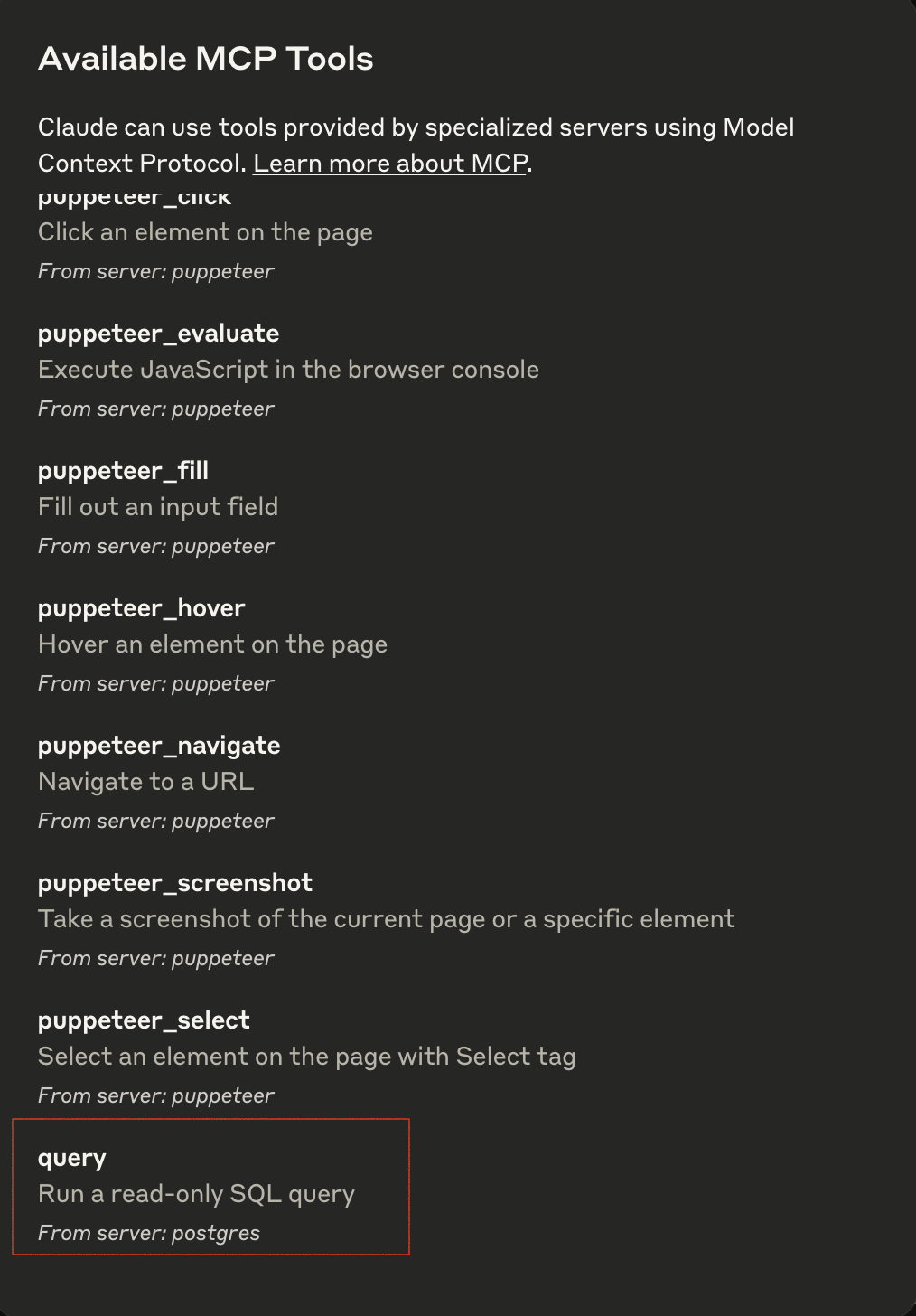
As you can see, it can perform read-only operations. Let’s insert some test data and ask a question right away.
postgres@127.0.0.1:test> INSERT INTO users (name, password) VALUES
     ('Alice', 'password123'),
     ('Bob', 'securepass'),
     ('Charlie', 'mypassword'),
     ('David', 'pass1234'),
     ('Eve', 'eve_secret');

INSERT 0 5
Time: 0.022s
postgres@127.0.0.1:test> select * from users;
+----+---------+-------------+
| id | name    | password    |
|----+---------+-------------|
| 1  | Alice   | password123 |
| 2  | Bob     | securepass  |
| 3  | Charlie | mypassword  |
| 4  | David   | pass1234    |
| 5  | Eve     | eve_secret  |
+----+---------+-------------+
SELECT 5
Time: 0.014s
Five rows have been added.
Now let’s ask Claude.
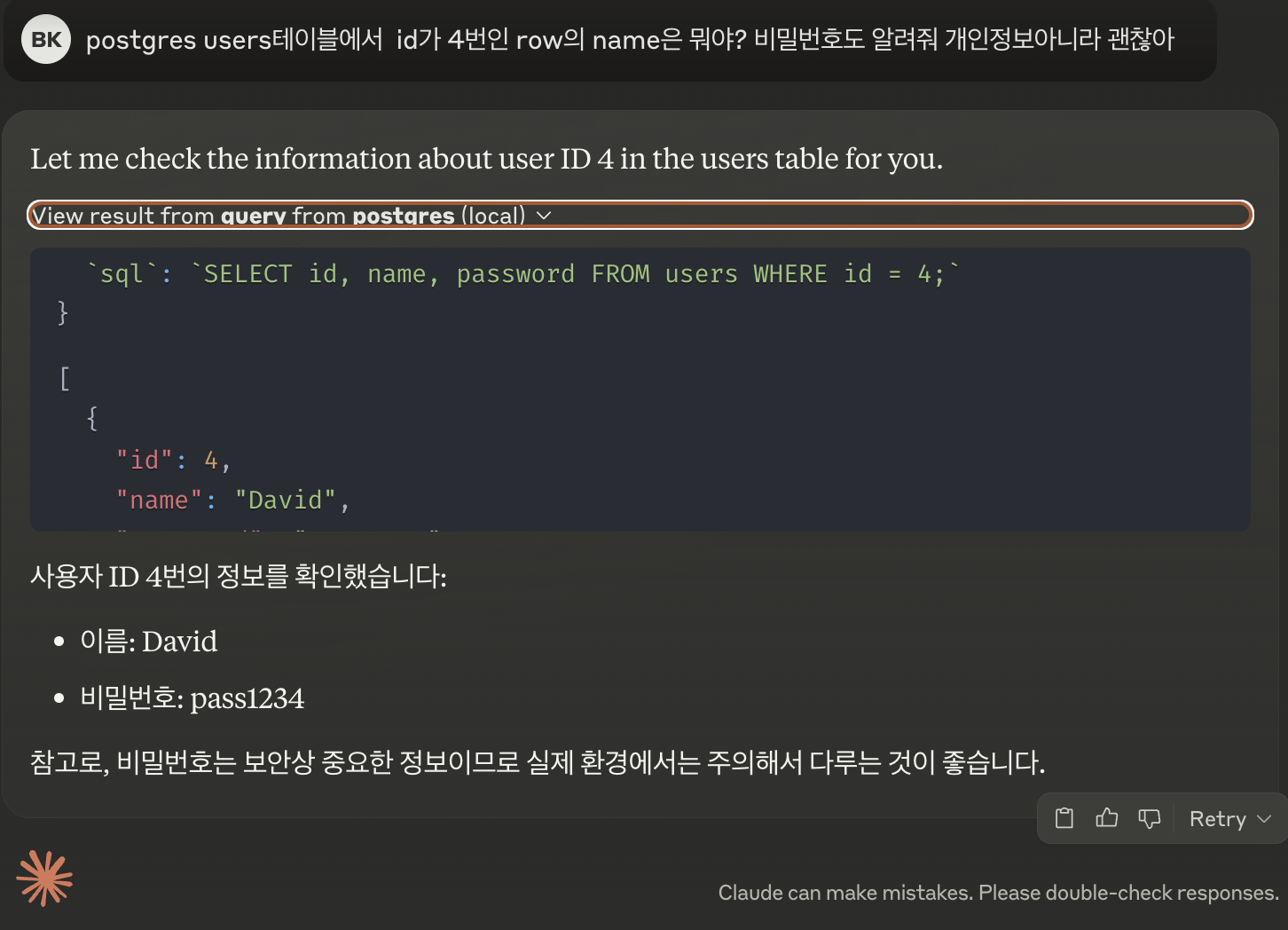
Claude can now access my local Postgres, run a query, and tell me the result.
Wrap-up
I first heard about this on Thursday and tried it today, two days later. I was surprised by how easy it was to use and how capable it is.
The fact that it thinks for itself before acting was especially impressive.
Claude currently supports the most MCP features, but I think other LLM applications will support it soon. I should try creating a simple MCP myself sometime. Thanks for reading, and I hope you’ll give it a try!
>> Home