I was familiar with Markdown, so I used Velog as my blog, but I decided to host a blog with Hugo + GitHub Pages.
Here I’ll document the deployment process.
1. Hugo?
Hugo is an open-source SSG (Static Site Generator) written in Go.
I considered using Astro, based on JS/TS, but chose lightweight Hugo.
Hugo allows CSS and HTML customization through theme-override, and its GoTemplate supports constructs such as if and for loops.
2. Install Hugo
- mac:
brew install hugo - Linux:
sudo snap install hugo - Windows
- chocolately:
choco install hugo-extended - scoop:
scoop install hugo-extended - winget:
winget install Hugo.Hugo.Extended
- chocolately:
You can also install it with Go.
- Go:
go install github.com/gohugoio/hugo@latest
3. Create a project
After installation, create a project.hugo new site <project name>
The basic structure of the created project looks like this.
.
├── archetypes # Templates for creating new posts
├── assets # Resources processed with Hugo Pipes (SCSS, JS, etc.)
├── content # Directory where posts are stored
├── data # Structured data used by the site (YAML, TOML, JSON)
├── hugo.toml # Configuration file
├── i18n # Internationalization strings
├── layouts # Custom layouts
├── static # css, images
└── themes # Hugo theme to use
4. Hugo themes
4-1 Find a theme
Choose a theme you like from Themes.
I used Hugo-Classic.
My friends didn’t like it much, but I liked its minimalist look and the theme author’s aesthetic.
4-2 Apply a theme
The details vary slightly between themes; this post is based on Hugo-Classic. Refer to each theme’s GitHub repository.
- Once you find a theme you like, clone its Git repository into the
themes/directory of the project you created earlier. - Run
themes/cloned-theme/exampleSite/. ../. - Run
cd .. && hugo serverto access the site atlocalhost:1313.
5. How to use it
- Create a post (content)
hugo new post/good-to-greet.md: this createsgoot-to-greet.mdundercontent/post. Write the post in this file and it will appear on the site. - Customize the layout
Hugo supports customization throughtheme-override. Createproject/layout/partials/header.htmland customize it. - Customize CSS
Useproject/css/theme-override.cssfor customization. - Add routes
Add the following tohugo.toml:
[[menu.main]]
name = "Posts"
url = "/post/"
[[menu.main]]
name = "someRoute"
url = "/some/"
This adds routes.
6. Deployment (GitHub Pages)
Initialize the project as a GitHub repository and push it to the remote.
Once pushed, go to Settings -> Pages in the remote repository and select GitHub Actions from the Source dropdown under Build and deployment.
A window will appear to create a CI workflow. I used the following workflow.
name: Deploy Hugo site to Pages

on:
  push:
    branches:
      - main
  # Allow manual runs from the Actions tab
  workflow_dispatch:

# Set permissions for deploying to GitHub Pages
permissions:
  contents: read
  pages: write
  id-token: write

# Allow only one deployment at a time; skip pending runs between the current and latest run
# Do not cancel a running deployment, so it can finish
concurrency:
  group: "pages"
  cancel-in-progress: false

# Set bash as the default shell
defaults:
  run:
    shell: bash

jobs:
  # Build job
  build:
    runs-on: ubuntu-latest
    env:
      HUGO_VERSION: 0.140.1
    steps:
      - name: Install Hugo CLI
        run: |
          wget -O ${{ runner.temp }}/hugo.deb https://github.com/gohugoio/hugo/releases/download/v${HUGO_VERSION}/hugo_extended_${HUGO_VERSION}_linux-amd64.deb \
          && sudo dpkg -i ${{ runner.temp }}/hugo.deb
      - name: Install Dart Sass
        run: sudo snap install dart-sass
      - name: Checkout
        uses: actions/checkout@v4
        with:
          submodules: recursive
          fetch-depth: 0
      - name: Setup Pages
        id: pages
        uses: actions/configure-pages@v5
      - name: Install Node.js
        run: "[[ -f package-lock.json || -f npm-shrinkwrap.json ]] && npm ci || true"
      - name: Build with Hugo
        env:
          HUGO_CACHEDIR: ${{ runner.temp }}/hugo_cache
          HUGO_ENVIRONMENT: production
          TZ: Asia/Seoul
        run: |
          hugo \
            --gc \
            --minify \
            --baseURL "${{ steps.pages.outputs.base_url }}/"
      - name: Upload artifact
        uses: actions/upload-pages-artifact@v3
        with:
          path: ./public

  # Deployment job
  deploy:
    environment:
      name: github-pages
      url: ${{ steps.deployment.outputs.page_url }}
    runs-on: ubuntu-latest
    needs: build
    steps:
      - name: Deploy to GitHub Pages
        id: deployment
        uses: actions/deploy-pages@v4
Push to the main branch of the GitHub repository and it will build and deploy to GitHub Pages.
7. Connect a domain
When you deploy with GitHub Pages, the site is published at a domain in the format <github username>.github.io. I manage my domain’s DNS with Cloudflare, so I created a DNS CNAME record there.
My domain is bumgu.com, and I wanted the blog domain to be blog.bumgu.com, so:
Type: CNAME
Name: blog
Content: <github username>.github.io
Create a DNS record as above and look up the DNS with doggo.
➜ doggo blog.bumgu.com
NAME                    TYPE    CLASS   TTL     ADDRESS                 NAMESERVER
blog.bumgu.com.         CNAME   IN      217s    bonzonkim.github.io.    8.8.8.8:53
bonzonkim.github.io.    A       IN      3517s   185.199.109.153         8.8.8.8:53
bonzonkim.github.io.    A       IN      3517s   185.199.110.153         8.8.8.8:53
bonzonkim.github.io.    A       IN      3517s   185.199.108.153         8.8.8.8:53
bonzonkim.github.io.    A       IN      3517s   185.199.111.153         8.8.8.8:53
blog.bumgu.com.         CNAME   IN      300s    bonzonkim.github.io.    8.8.4.4:53
bonzonkim.github.io.    A       IN      3600s   185.199.111.153         8.8.4.4:53
bonzonkim.github.io.    A       IN      3600s   185.199.110.153         8.8.4.4:53
bonzonkim.github.io.    A       IN      3600s   185.199.108.153         8.8.4.4:53
bonzonkim.github.io.    A       IN      3600s   185.199.109.153         8.8.4.4:53
If the results look correct, you’re ready.
8. Finished
Everything is ready, so push to the GitHub remote repository.
After pushing, wait for the CI workflow to finish…
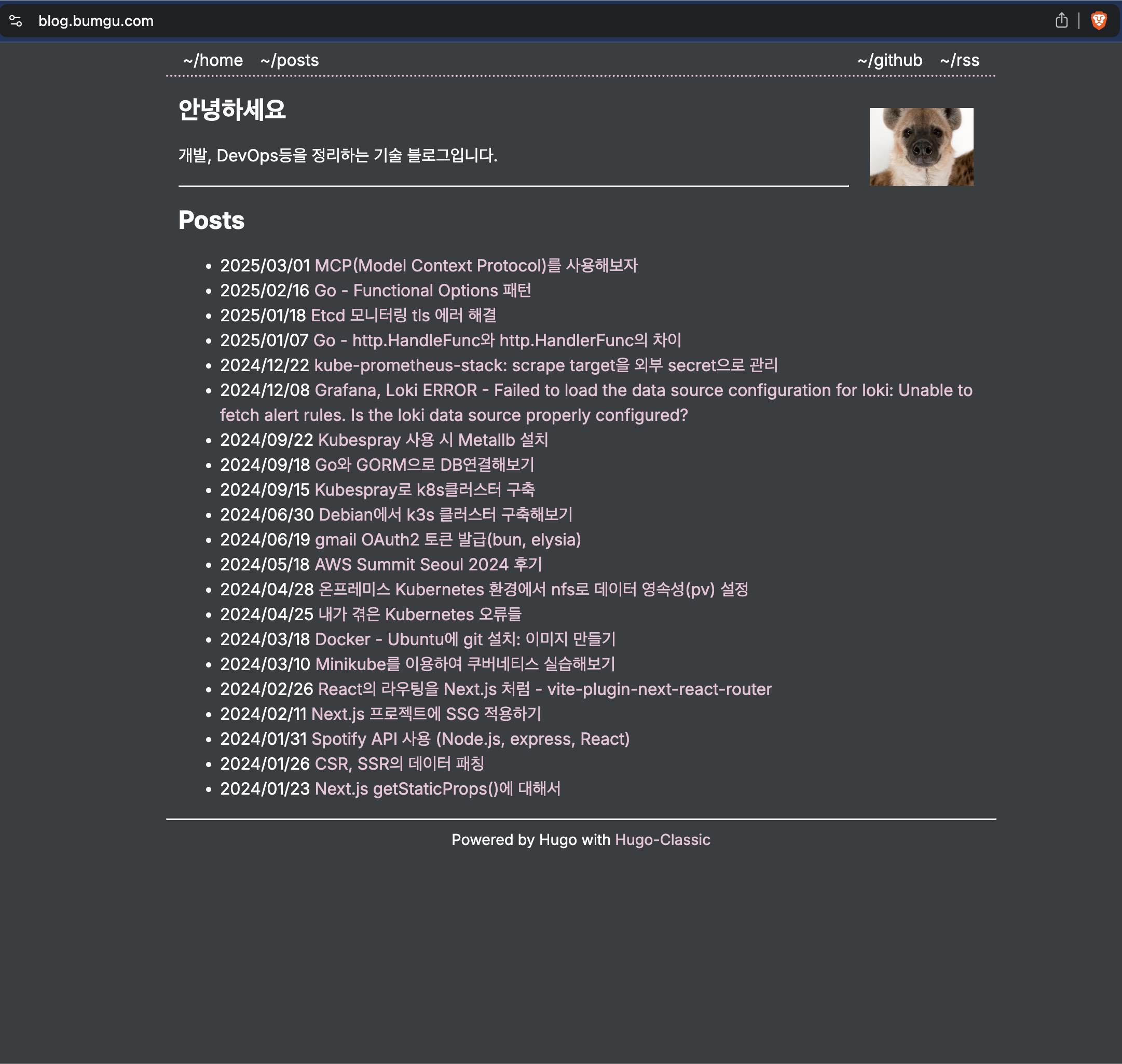
The blog deployment is complete.
The big advantages are that posts are written in Markdown and the site is lightweight and fast.
Thank you.
References
Create a static blog with Hugo and GitHub Pages
>> Home