Nova
In OpenStack, Nova is the core component for managing compute resources in the cloud.
It manages the entire lifecycle of instances, including creation, management, and deletion.
It is also an essential component that works with Neutron, Cinder, and other services to connect networking and storage to instances.
Controller Node
1. Create Nova databases in MariaDB
create database nova_api- Stores global information related to Nova’s API service (e.g. instance requests, cell information, high-level tracking, etc.)
create database nova- The database for the default cell (cell1), where data about actual instances (virtual machines) is stored. It holds local information for each cell, such as instance state, allocated resources, and events.
create database nova_cell0- A special-purpose database in Nova’s cell structure for instances that failed scheduling (instances that could not be assigned to any compute node).
GRANT ALL PRIVILEGES ON nova_api.* TO 'nova'@'localhost' IDENTIFIED BY 'NOVA_API_PASS';
GRANT ALL PRIVILEGES ON nova_api.* TO 'nova'@'%' IDENTIFIED BY 'NOVA_API_PASS';

GRANT ALL PRIVILEGES ON nova.* TO 'nova'@'localhost' IDENTIFIED BY 'NOVA_PASS';
GRANT ALL PRIVILEGES ON nova.* TO 'nova'@'%' IDENTIFIED BY 'NOVA_PASS';

GRANT ALL PRIVILEGES ON nova_cell0.* TO 'nova'@'localhost' IDENTIFIED BY 'NOVA_CELL0_PASS';
GRANT ALL PRIVILEGES ON nova_cell0.* TO 'nova'@'%' IDENTIFIED BY 'NOVA_CELL0_PASS';
2. Create the Nova user and grant permissions
- Create the user
openstack user create --domain default --password-prompt nova
- Grant administrator privileges
openstack role add --project service --user nova admin
- Create the Nova service entity
openstack service create --name nova --description "Openstack Compute" compute
3. Create Nova API service endpoints
$ openstack endpoint create --region RegionOne \
  compute public http://controller:8774/v2.1
+--------------+----------------------------------+
| Field        | Value                            |
+--------------+----------------------------------+
| enabled      | True                             |
| id           | 08ab870ef54647399f31472a22e3ec23 |
| interface    | public                           |
| region       | RegionOne                        |
| region_id    | RegionOne                        |
| service_id   | 25ca5a23aa5b4375889d931e11467e61 |
| service_name | nova                             |
| service_type | compute                          |
| url          | http://controller:8774/v2.1      |
+--------------+----------------------------------+
$ openstack endpoint create --region RegionOne \
  compute internal http://controller:8774/v2.1
+--------------+----------------------------------+
| Field        | Value                            |
+--------------+----------------------------------+
| enabled      | True                             |
| id           | 59b80313047f41eb89e429600eff9a71 |
| interface    | internal                         |
| region       | RegionOne                        |
| region_id    | RegionOne                        |
| service_id   | 25ca5a23aa5b4375889d931e11467e61 |
| service_name | nova                             |
| service_type | compute                          |
| url          | http://controller:8774/v2.1      |
+--------------+----------------------------------+
$ openstack endpoint create --region RegionOne \
  compute admin http://controller:8774/v2.1
+--------------+----------------------------------+
| Field        | Value                            |
+--------------+----------------------------------+
| enabled      | True                             |
| id           | 12a2aab58e0f4a87b1f41e6e6486ef5c |
| interface    | admin                            |
| region       | RegionOne                        |
| region_id    | RegionOne                        |
| service_id   | 25ca5a23aa5b4375889d931e11467e61 |
| service_name | nova                             |
| service_type | compute                          |
| url          | http://controller:8774/v2.1      |
+--------------+----------------------------------+
4. Install Nova packages
api install nova-api nova-conductor nova-novncproxy nova-scheduler -y
5. Configure Nova
/etc/nova/nova.conf
[api_database]
# Database for the nova user: nova_api
connection = mysql+pymysql://nova:NOVA_API_PASS@controller/nova_api

[database]
# Database for the nova user: nova
connection = mysql+pymysql://nova:NOVA_PASS@controller/nova
[DEFAULT]
transport_url = rabbit://openstack:RABBIT_PASS@controller:5672/
my_ip = 1.1.1.1 # Controller node IP
RabbitMQ user creation is covered in OpenStack Setup, Part 1.
[api]
# ...
auth_strategy = keystone

[keystone_authtoken]
# ...
www_authenticate_uri = http://controller:5000/
auth_url = http://controller:5000/
memcached_servers = controller:11211
auth_type = password
project_domain_name = Default
user_domain_name = Default
project_name = service
username = nova
password = NOVA_PASS
[service_user]
send_service_user_token = true
auth_url = https://controller:5000/v3
auth_strategy = keystone
auth_type = password
project_domain_name = Default
project_name = service
user_domain_name = Default
username = nova
password = NOVA_PASS
[vnc]
# Using $my_ip applies the my_ip value defined in the DEFAULT section.
enabled = true
server_listen = $my_ip
server_proxyclient_address = $my_ip
[glance]
api_servers = http://controller:9292
[oslo_concurrency]
lock_path = /var/lib/nova/tmp
[placement]
region_name = RegionOne
project_domain_name = Default
project_name = service
auth_type = password
user_domain_name = Default
auth_url = http://controller:5000/v3
username = placement
password = PLACEMENT_PASS
6. Populate the Nova databases
- Create nova-api
su -s /bin/sh -c "nova-manage api_db sync" nova
- Register the cell0 database
su -s /bin/sh -c "nova-manage cell_v2 map_cell0" nova
- Create the cell1 cell
su -s /bin/sh -c "nova-manage cell_v2 create_cell --name=cell1 --verbose" nova
- Create Nova
su -s /bin/sh -c "nova-manage db sync" nova
- Check that cell0 and cell1 are registered properly
su -s /bin/sh -c "nova-manage cell_v2 list_cells" nova
If nova-manage db sync returns an error
There is a good chance cell0 is mapped to the wrong database. Delete the cell and map it again.
CELL0_UUID=$(nova-manage cell_v2 list_cells | grep 'cell0' | awk '{print $4}')
su -s /bin/sh -c "nova-manage cell_v2 delete_cell --cell_uuid $CELL0_UUID" nova
Delete the cell with the command above, then map it again.
Compute Node
1. Install the nova-compute package
api install nova-compute -y
2. Configure nova-compute
/etc/nova/nova.conf
[DEFAULT]
transport_url = rabbit://openstack:RABBIT_PASS@controller
my_ip = 2.2.2.2
[api]
auth_strategy = keystone

[keystone_authtoken]
www_authenticate_uri = http://controller:5000/
auth_url = http://controller:5000/
memcached_servers = controller:11211
auth_type = password
project_domain_name = Default
user_domain_name = Default
project_name = service
username = nova
password = NOVA_PASS
[service_user]
send_service_user_token = true
auth_url = http://controller:5000/v3
auth_strategy = keystone
auth_type = password
project_domain_name = Default
project_name = service
user_domain_name = Default
username = nova
password = NOVA_PASS
[vnc]
enabled = true
server_listen = 0.0.0.0
server_proxyclient_address = $my_ip
novncproxy_base_url = http://controller:6080/vnc_auto.html
[glance]
api_servers = http://controller:9292
[oslo_concurrency]
lock_path = /var/lib/nova/tmp
[placement]
region_name = RegionOne
project_domain_name = Default
project_name = service
auth_type = password
user_domain_name = Default
auth_url = http://controller:5000/v3
username = placement
password = PLACEMENT_PASS
After configuration, before restarting services, run egrep -c '(vmx|svm)' /proc/cpuinfo.
If the output is greater than 0, hardware acceleration is available and no additional configuration is needed.
If the output is 0, edit /etc/nova/nova-compute.conf:
[libvirt]
virt_type = qemu
Note that Mac does not support nested virtualization.
In other words, you cannot run a VM on top of a Mac VM and build OpenStack there.
3. Restart services
service nova-compute restart
Back on the Controller Node
- Check whether the compute host is in the database
openstack compute service list --service nova-compute
- Discover compute hosts
su -s /bin/sh -c "nova-manage cell_v2 discover_hosts --verbose" nova
It should reportFound 0 unmapped computes in cellwhen run.
Neutron
Neutron is the core component for creating and managing network services and virtual network infrastructure (VNI) in a cloud environment.
It manages access down to the physical network layer, allowing subnets, routers, and other resources to be created freely, and can create VXLANs to provide isolated networks for each tenant.
It can also dynamically assign IP addresses to instances through the DHCP agent and assign public IPs using Floating IPs.
1. Create the database
create database neutron;
GRANT ALL PRIVILEGES ON neutron.* TO 'neutron'@'localhost' IDENTIFIED BY 'NEUTRON_PASS';
GRANT ALL PRIVILEGES ON neutron.* TO 'neutron'@'%' IDENTIFIED BY 'NEUTRON_PASS';
2. Create the Neutron user and grant permissions
- Create the user
openstack user create --domain default --password-prompt neutron
- Grant administrator privileges
openstack role add --project service --user neutron admin
- Create the Neutron service entity
openstack service create --name neutron --description "OpenStack Networking" network
3. Create Neutron API service endpoints
$ openstack endpoint create --region RegionOne \
  network public http://controller:9696
+--------------+----------------------------------+
| Field        | Value                            |
+--------------+----------------------------------+
| enabled      | True                             |
| id           | 6ceee173e834461da782b70208c6d4a5 |
| interface    | public                           |
| region       | RegionOne                        |
| region_id    | RegionOne                        |
| service_id   | b42a173fcb674d6f867eef425e100e5a |
| service_name | neutron                          |
| service_type | network                          |
| url          | http://controller:9696           |
+--------------+----------------------------------+
$ openstack endpoint create --region RegionOne \
  network internal http://controller:9696
+--------------+----------------------------------+
| Field        | Value                            |
+--------------+----------------------------------+
| enabled      | True                             |
| id           | ecbb6670e71e4199af33a22ab0b7e5e8 |
| interface    | internal                         |
| region       | RegionOne                        |
| region_id    | RegionOne                        |
| service_id   | b42a173fcb674d6f867eef425e100e5a |
| service_name | neutron                          |
| service_type | network                          |
| url          | http://controller:9696           |
+--------------+----------------------------------+
$ openstack endpoint create --region RegionOne \
  network admin http://controller:9696
+--------------+----------------------------------+
| Field        | Value                            |
+--------------+----------------------------------+
| enabled      | True                             |
| id           | e32b980a7e12447b84e1b2626ed5859b |
| interface    | admin                            |
| region       | RegionOne                        |
| region_id    | RegionOne                        |
| service_id   | b42a173fcb674d6f867eef425e100e5a |
| service_name | neutron                          |
| service_type | network                          |
| url          | http://controller:9696           |
+--------------+----------------------------------+
4. Install Neutron packages
apt install neutron-server neutron-plugin-ml2 \
  neutron-dhcp-agent \
  neutron-metadata-agent neutron-linuxbridge-agent \
  neutron-l3-agent -y
I used neutron-linuxbridge-agent.
5. Configure Neutron
/etc/neutron/neutron.conf
[database]
connection = mysql+pymysql://neutron:NEUTRON_PASS@controller/neutron
[DEFAULT]
core_plugin = ml2
service_plugins = router
transport_url = rabbit://openstack:RABBIT_PASS@controller
auth_strategy = keystone
notify_nova_on_port_status_changes = true
notify_nova_on_port_data_changes = true
[keystone_authtoken]
www_authenticate_uri = http://controller:5000
auth_url = http://controller:5000
memcached_servers = controller:11211
auth_type = password
project_domain_name = Default
user_domain_name = Default
project_name = service
username = neutron
password = NEUTRON_PASS
[nova]
auth_url = http://controller:5000
auth_type = password
project_domain_name = Default
user_domain_name = Default
region_name = RegionOne
project_name = service
username = nova
password = NOVA_PASS
[oslo_concurrency]
lock_path = /var/lib/neutron/tmp
[experimental]
# Linuxbridge is still an experimental technology.
linuxbridge = true
/etc/neutron/plugins/ml2/linuxbridge_agent.ini
# Do this on both the Network Node and the agent Node.

[vxlan]
enable_vxlan = True # Set to True to use VXLAN.
local_ip = 192.168.20.8 # The node's actual IP address.
l2_population = True


[linux_bridge]
# Replace eno1 with the network interface actually in use.
physical_interface_mappings = provider:eno1
/etc/neutron/dhcp_agent.ini
[DEFAULT]
interface_driver = linuxbridge
dhcp_driver = neutron.agent.linux.dhcp.Dnsmasq
enable_isolated_metadata = True
/etc/nova/nova.conf
[neutron]
url = http://controller:9696
auth_url = http://controller:5000
auth_type = password
project_domain_name = default
user_domain_name = default
region_name = RegionOne
project_name = service
username = neutron
password = NEUTRON_PASS
6. Restart services and create the database
service restart neutron-*
su -s /bin/sh -c "neutron-db-manage --config-file /etc/neutron/neutron.conf \
  --config-file /etc/neutron/plugins/ml2/ml2_conf.ini upgrade head" neutron
Cinder
Cinder is a component that provides block storage.
It enables stable operation by providing data persistence.
Creating a volume with Cinder and attaching it to a server is like adding another disk to a physical server and mounting it.
I set this up using NFS on a storage server, so this post covers the NFS configuration.
Controller Node
1. Create the Cinder database
create database cinder;
GRANT ALL PRIVILEGES ON cinder.* TO 'cinder'@'localhost' IDENTIFIED BY 'CINDER_DBPASS';
GRANT ALL PRIVILEGES ON cinder.* TO 'cinder'@'%' IDENTIFIED BY 'CINDER_DBPASS';
2. Create the Cinder user and grant permissions
- Create the Cinder user
openstack user create --domain default --password-prompt cinder
- Grant administrator privileges
openstack role add --project service --user cinder admin
- Create the cinderv3 service entity
openstack service create --name cinderv3 --description "OpenStack Block Storage" volumev3
3. Create Cinder API service endpoints
$ openstack endpoint create --region RegionOne \
  volumev3 public http://controller:8776/v3/%\(project_id\)s
+--------------+------------------------------------------+
| Field        | Value                                    |
+--------------+------------------------------------------+
| enabled      | True                                     |
| id           | b864942e6f1745e1a01d75fd172f47d1         |
| interface    | public                                   |
| region       | RegionOne                                |
| region_id    | RegionOne                                |
| service_id   | 511815a9644d469a928371a94d41f293         |
| service_name | cinderv3                                 |
| service_type | volumev3                                 |
| url          | http://controller:8776/v3/%(project_id)s |
+--------------+------------------------------------------+
$ openstack endpoint create --region RegionOne \
  volumev3 internal http://controller:8776/v3/%\(project_id\)s
+--------------+------------------------------------------+
| Field        | Value                                    |
+--------------+------------------------------------------+
| enabled      | True                                     |
| id           | f100d7e7333a4de58bfaa4fbfcbfbbeb         |
| interface    | internal                                 |
| region       | RegionOne                                |
| region_id    | RegionOne                                |
| service_id   | 511815a9644d469a928371a94d41f293         |
| service_name | cinderv3                                 |
| service_type | volumev3                                 |
| url          | http://controller:8776/v3/%(project_id)s |
+--------------+------------------------------------------+
$ openstack endpoint create --region RegionOne \
  volumev3 admin http://controller:8776/v3/%\(project_id\)s
+--------------+------------------------------------------+
| Field        | Value                                    |
+--------------+------------------------------------------+
| enabled      | True                                     |
| id           | b16c62c737d4459b91b23707dcb51e9d         |
| interface    | admin                                    |
| region       | RegionOne                                |
| region_id    | RegionOne                                |
| service_id   | 511815a9644d469a928371a94d41f293         |
| service_name | cinderv3                                 |
| service_type | volumev3                                 |
| url          | http://controller:8776/v3/%(project_id)s |
+--------------+------------------------------------------+
4. Install packages
- Cinder packages
apt install cinder-api cinder-scheduler -y
- NFS packages
apt install nfs-common -y
5. Configure Cinder
/etc/cinder/cinder.conf
[database]
connection = mysql+pymysql://cinder:CINDER_DBPASS@controller/cinder
[keystone_authtoken]
# ...
www_authenticate_uri = http://controller:5000
auth_url = http://controller:5000
memcached_servers = controller:11211
auth_type = password
project_domain_name = default
user_domain_name = default
project_name = service
username = cinder
password = CINDER_PASS
[DEFAULT]
transport_url = rabbit://openstack:RABBIT_PASS@controller
my_ip = 1.1.1.1
[oslo_concurrency]
lock_path = /var/lib/cinder/tmp
/etc/nova/nova.conf
[cinder]
os_region_name = RegionOne # The actual region name
6. Populate the Cinder database
su -s /bin/sh -c "cinder-manage db sync" cinder
7. Restart services
On the Compute node:
service nova-api restart
On the Controller node:
service cinder-scheduler restart
service apache2 restart
Storage Node
1. Install packages
- Cinder package
apt install cinder-volume -y
- NFS package
apt install nfs-common -y
2. Configure Cinder
/etc/cinder/cinder.conf
[database]
connection = mysql+pymysql://cinder:CINDER_DBPASS@controller/cinder
[DEFAULT]
# ...
transport_url = rabbit://openstack:RABBIT_PASS@controller
auth_strategy = keystone
my_ip = 1.1.1.1
enabled_backends = nfs # Use lvm here if using LVM.
glance_api_servers = http://controller:9292
[keystone_authtoken]
www_authenticate_uri = http://controller:5000
auth_url = http://controller:5000
memcached_servers = controller:11211
auth_type = password
project_domain_name = default
user_domain_name = default
project_name = service
username = cinder
password = CINDER_PASS
[oslo_concurrency]
lock_path = /var/lib/cinder/tmp
[nfs]
# Set NfsDriver as the volume_driver.
volume_driver = cinder.volume.drivers.nfs.NfsDriver
volume_backend_name = nfs-storage

# Path to the NFS configuration file
nfs_shares_config = /etc/cinder/nfs_shares

# Path where Cinder data is stored (mount the NFS share here).
nfs_mount_point_base = /var/lib/cinder/volumes
/etc/cinder/nfs_shares
#NFSIP:NFSPATH
2.2.2.2:/export/cinder
Set this in the format NFS server IP:path. Cinder mounts it automatically, so no separate mount configuration is needed.
Test
Now that all the configuration is complete, let’s test it.
1. Provider network
Create a network
# The --external option specifies that this is an external network.
# --provider-physical-network provider: the name configured in linuxbridge_agent.ini
# --provider-network-type flat: directly connected to the physical network without VLAN tagging
openstack network create --share --external \
--provider-physical-network provider \
--provider-network-type flat provider
Create a subnet
# Example: if the actual network is 220.92.114.0/24
openstack subnet create --network provider \
--allocation-pool start=220.92.114.8,end=220.92.114.40 \
--dns-nameserver 8.8.8.8 \
--gateway 220.92.114.1 \
--subnet-range 220.92.114.0/24 provider-subnet

- `--allocation-pool`: The range of Floating IPs assigned to instances. Configure it so it does not overlap with the DHCP range.
- `--gateway`: The gateway address of the actual physical network.
- `--subnet-range`: The full address range of the actual physical network.
Think of the provider network as a public network, that is, a network using public IPs.
2. Self-service network
Create a network
openstack network create selfservice
Create a subnet
openstack subnet create --network selfservice \
  --dns-nameserver 8.8.8.8 --gateway 172.16.1.1 \
  --subnet-range 172.16.1.0/24 selfservice
The self-service network is used inside instances.
Create a router on the network node and connect the self-service and provider networks to it to communicate externally through NAT.
It also enables creating isolated networks per tenant.
For example, production could use 172.17.1.0 and development 172.16.1.0.
3. Create a router
# Create a router
openstack router create router

# Connect the router to the internal network (selfservice)
openstack router add subnet router selfservice

# Connect the router to the external network (provider) and set the gateway
openstack router set router --external-gateway provider
4. Register an OS image
You need a cloud image, not a regular VM image, to create a VM. Download the lightweight Cirros image for testing.
# Download the image
wget http://download.cirros-cloud.net/0.5.2/cirros-0.5.2-x86_64-disk.img

# Upload the image to Glance
openstack image create "cirros" \
  --file cirros-0.5.2-x86_64-disk.img \
  --disk-format qcow2 \
  --container-format bare \
  --public
5. Create a key
openstack keypair create --private-key mykey.pem mykey
chmod 600 mykey.pem
6. Create a security group rule
openstack security group rule create --proto tcp --dst-port 22 default
7. Create a flavor
A flavor is like the instance type you select when creating an AWS EC2 instance (such as m2.large).
Cirros is a very lightweight OS, so create a small flavor.
# 512 MB RAM, 1 GB disk, 1 vCPU; flavor name: m1.tiny
openstack flavor create --ram 512 --disk 1 --vcpus 1 m1.tiny
8. Create an instance
# Create an instance on the selfservice network using the Cirros image
openstack server create --flavor m1.tiny --image cirros \
  --nic net-id=$(openstack network show selfservice -f value -c id) \
  --security-group default --key-name mykey test-instance
Check the instance with openstack server list.
9. Create and associate a Floating IP
# Create a Floating IP (external IP)
openstack floating ip create provider

# Associate the created Floating IP with the instance.
# Replace FLOATING_IP with the IP address returned by the command above.

openstack server add floating ip test-instance [FLOATING_IP]
10. Ping and SSH
ping <floating_ip>
Since the keypair is registered, you can connect directly.
The default Cirros user is cirros.ssh -i mykey.pem cirros@<floating_ip>
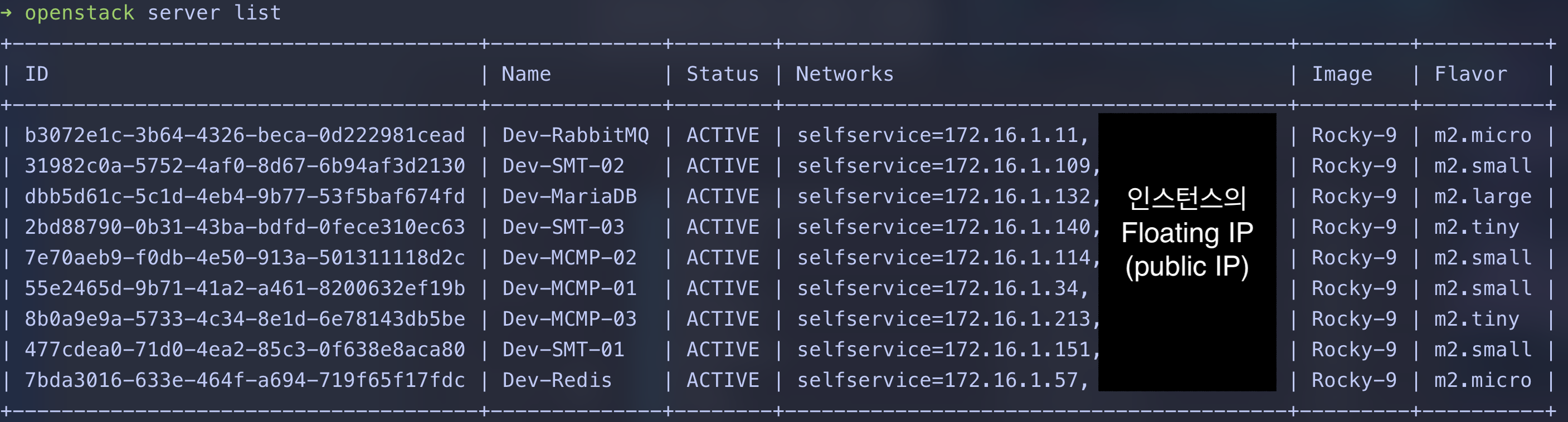
At the time of writing, I had written this post but had not actually created a test instance.
In the next post, I’ll apply IaC with Terraform and Python and create a real instance!
>> Home